...
Go to Settings > Import Settings
Select the Import from URL option
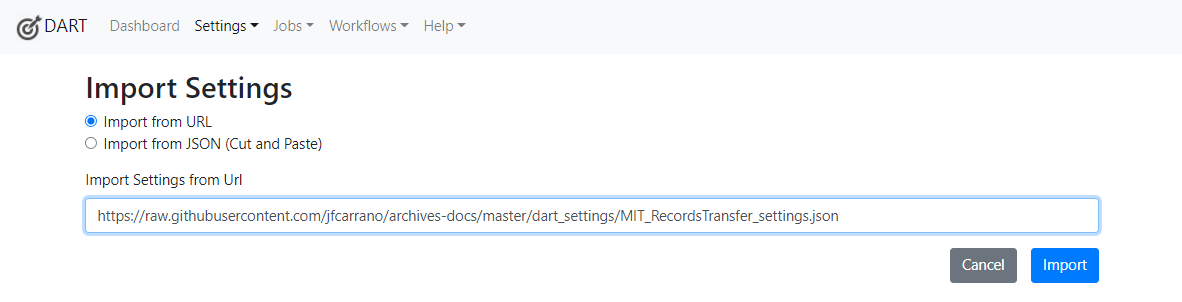
Enter this URL: https://raw.githubusercontent.com/jfcarrano/archives-docs/master/dart_settings/MIT_RecordsTransfer_settings.json
- Click Import
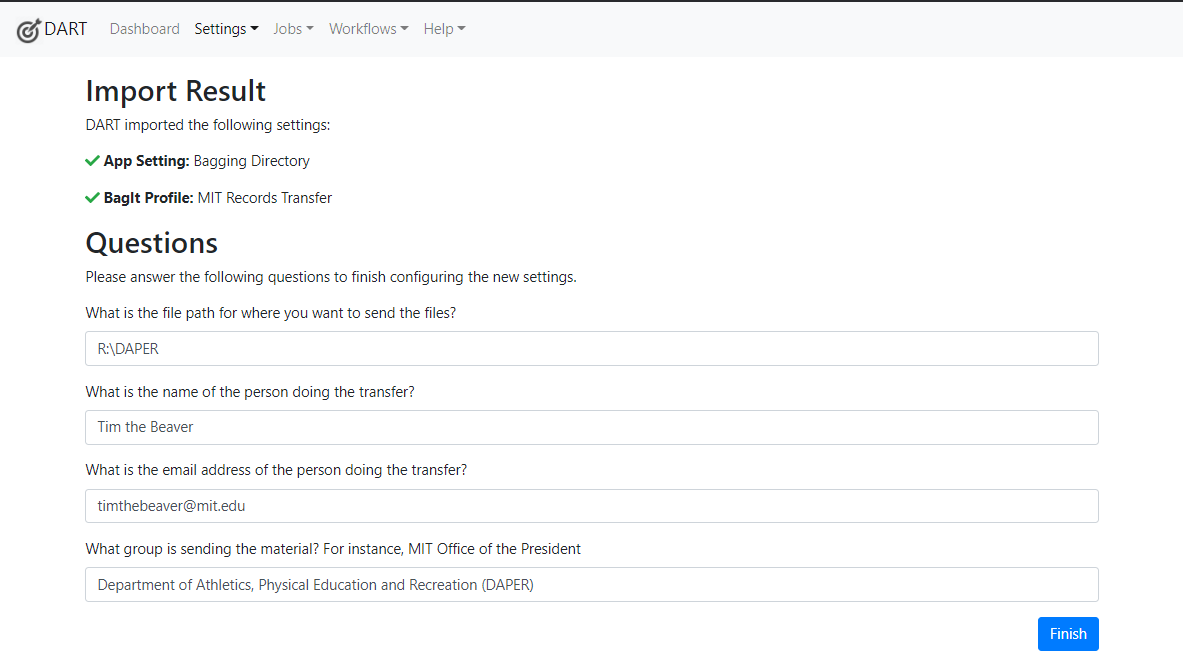
The settings import will show if it is successful on screen.
- For the file output path question, enter the file path to your group's folder on the Distinctive Collections records transfer drive (mentioned above in Connect to the network drive, step 2). The end result will be similar to the image below, for example if the records are from DAPER, it would be on Windows: R:\DAPER or on Macs: /Volumes/cdps-recordstransfer/DAPER.
If you're unsure on how to find the file path, try these options:- On Windows:
- go to your file explorer window and navigate into your group's folder in the Distinctive Collections records transfer drive (cdps-recordstransfer).
- Click on the address bar at the top of the window and copy the file path.
- Now that you have the path copied, paste it into the file output field path question in DART.
- On Mac:
- go to your Finder window and navigate to the Distinctive Collections records transfer drive (cdps-recordstransfer).
- Control click on your group's subfolder.
- With the menu that pops up, hold down the Option button on your keyboard.
- Instead of regular “Copy” you will now see “Copy "[your group's subfolder]" as Pathname”, click that.
- Now that you have the path copied, paste it into the file output field in DART.
- On Windows:
Click Finish
Once complete, you should now be ready to start using DART for records transfers.
...
To transfer records, open DART and go to Jobs > New.
Drag and drop any folders or files you want to transfer onto the blue-dotted line box in the DART window. When ready click Next >>.
Under BagIt Profile, select the "MIT records transfer" profile (this was imported during the set up above).
For Serialization, select ".tar".
Package Name should be as follows: the present date in YYYYMMDD format followed by _TheNameofYourOffice_01, for instance 20201109_OfficeOfThePresident_01. This will be the name of the package produced in the new location.
- If you have multiple transfers to complete, increase the ending number by one for each additional transfer after the first one for that date. For instance the second transfer from the first example would be, 20201109_OfficeOfThePresident_02, etc.
Output path is the location where the files will be going to. This should already be preset by default from setting up DART.
Click Next >>
Enter or adjust any description related to the transfer following the help text (hover over the "?" symbol to see the help text for each field).
Click Next >>
The Upload Targets page should be blank, this is only used when sending content to a cloud service, Click Next >>
On the next page, review the job.
If you need to adjust something click Back>>
If everything looks good, click the "Run Job" button
The progress screen will show when the package is created and validated.
If it fails, you can try again or contact Distinctive Collections.
- If successful, please contact Distinctive Collections to confirm you've completed your transfer.
- If you have additional transfers to make, return to step 1.
Please do NOT delete your original files until after you have received a notification from Distinctive Collections confirming receipt of proper transfer of the files. This may take several weeks.
Warning Note: you cannot alter or add any files to the package after it has been transferred. If you need to do so, you will have to redo the transfer, please contact Distinctive Collections staff if that is necessary.
...