...
Go to Settings > Import Settings
Select the Import from URL option
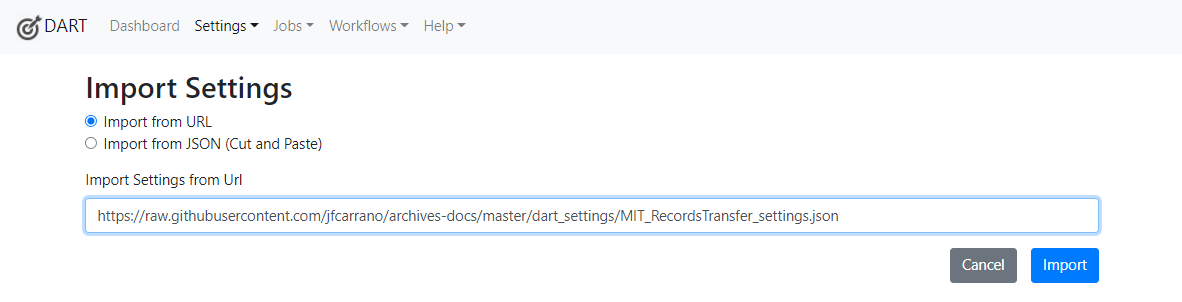
Enter this URL: https://raw.githubusercontent.com/jfcarrano/archives-docs/master/dart_settings/MIT_RecordsTransfer_settings.json
- Click Import
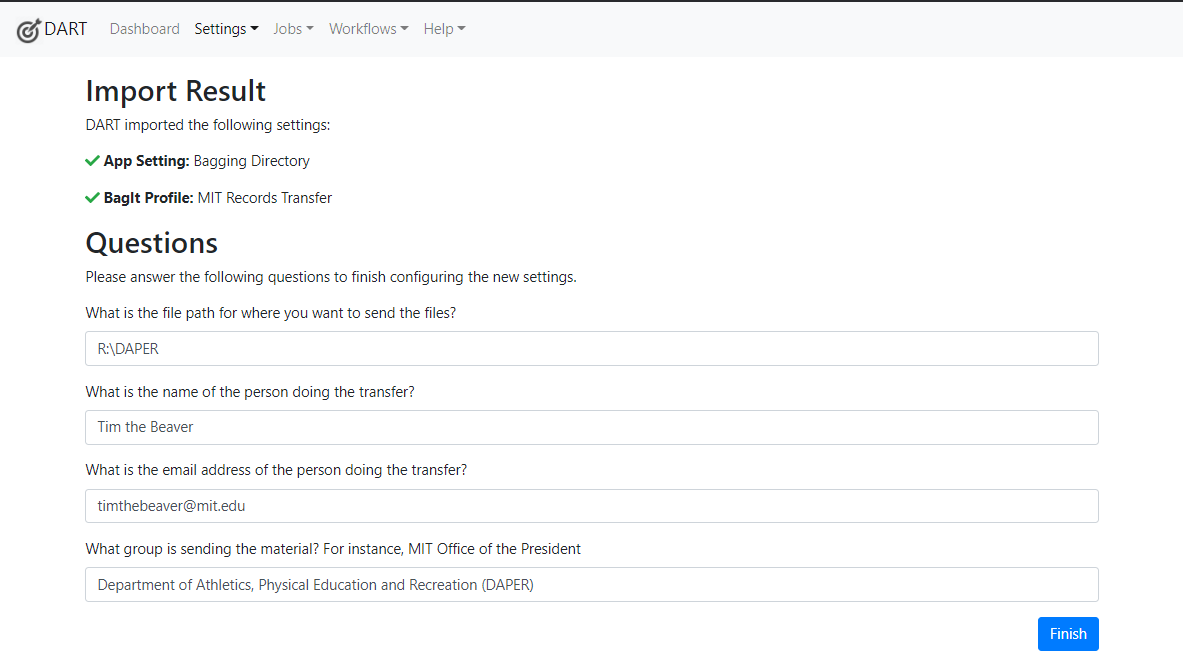
The settings import will show if it is successful on screen.
- For the file path question, enter the file path to your group's folder on the Distinctive Collections records transfer drive (mentioned above in Connect to the network drive, step 2). The end result will be similar to the image below, for example if the records are from DAPER, it would be on Windows: R:\DAPER or on Macs: /Volumes/cdps-recordstransfer/DAPER.
If you're unsure on how to find the file path, try these options:- On Windows:
- go to your file explorer window and navigate into your group's folder in the Distinctive Collections records transfer drive (cdps-recordstransfer).
- Click on the address bar at the top of the window and copy the file path.
- Now that you have the path copied, paste it into the file path question in DART.
- On Mac:
- go to your Finder window and navigate to the Distinctive Collections records transfer drive (cdps-recordstransfer).
- Control click on your group's subfolder.
- With the menu that pops up, hold down the Option button on your keyboard.
- Instead of regular “Copy” you will now see “Copy "[your group's subfolder]" as Pathname”, click that.
- Now that you have the path copied, paste it into the file output field in DART.
- On Windows:
Click Finish
Once complete, you should now be ready to start using DART for records transfers.
...