...
Design 1: Using Menu as an Analogy
Welcoming Screen
...
...
| Panel |
|---|
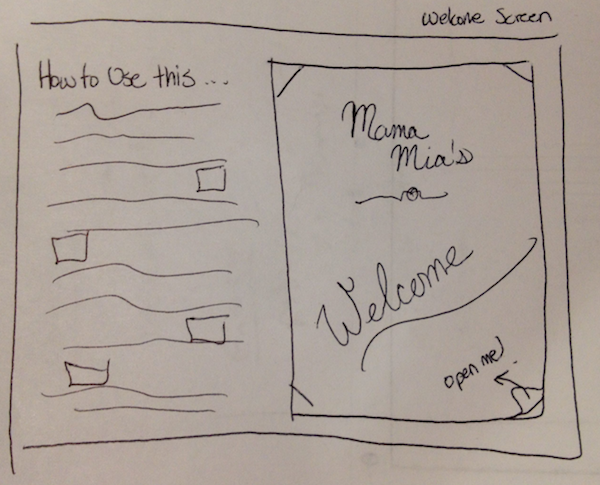
This is the initial screen that the use will see. It will display a tutorial of how to use the tablet on the left and side, and a picture of the main menu of the restaurant. There is a little animation of a page flip for an experienced user to recognize that in order to open the menu, the user can swipe and "flip" open the menu. Within the Scenario Joe thinks that this tablet will be easy to learn so he wants to skip over the tutorial. Everyone else decides not to listen to Joe and quickly skims the tutorial. |
Viewing and Ordering Food Screen
...
| Panel |
|---|
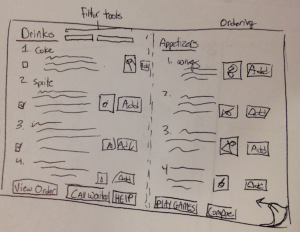
After opening the menu from the welcoming screen, the application will go straight into the menu part of the application. It will attempt to mimic a typical menu with all products separated by pages. For each item, there is a description, image, compare button, and an add button. When the use clicks on the image, it enlarges. The user can compare items but clicked on the compare button for multiple items and then clicking the "Compare" icon at the bottom, to open the comparing screen. The user can add items to the menu by clicking on the add button, which would prompt a popup for quantity, size, preferences, and any notes he/she would like. The user can filter which items are displayed on the pages by using the filter tools at the top. Within the Scenario Joe uses the menu to quickly order his drink and orders drinks for the rest of the crew. Jane and Julie are choosing which items to compare and using the filtering tools to narrow all the items down to seafood products. |
Comparing Foods & Drinks 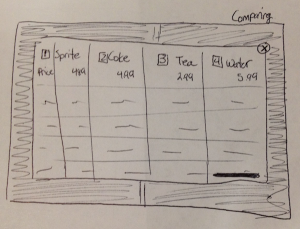
| Panel |
|---|
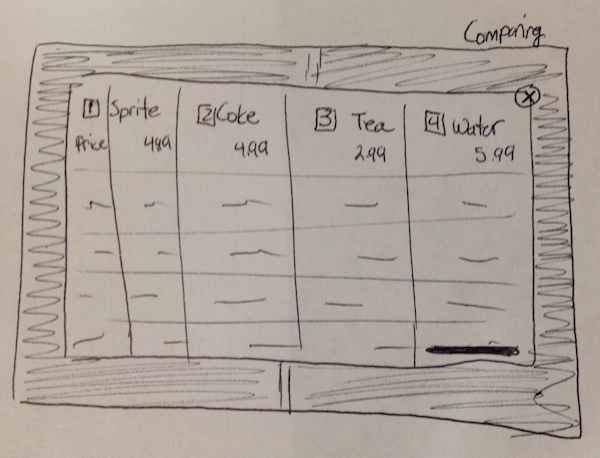
When the user clicks on the compare icon at the bottom of the viewing screen, a popup open that allows the user to view all of the products and its fact in a table. If there are too many items, the window would scroll horizontally to view the rest of the items. From there, he or she can click to add to the order or close the prompt. Within the Scenario Jane and Julie are deciding which seafood dish they want to order. Jane wants something cheaper whereas Julie wants one with less fat. |
Sending Order
...
| Panel |
|---|
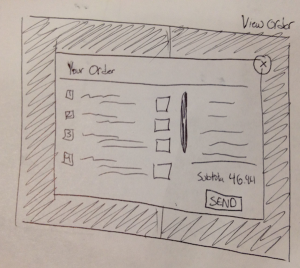
Once all of the users want to send in the order, then can click on the View Order at the bottom on the viewing screen. This prompt would pop up with would give a summary of what is being send to the waitress and how much they have ordered so far. This is like a verification screen. They can remove products from here also, if they choose not to order something anymore. Within the Scenario When everyone has chosen what they wanted to eat and drink, they click send! |
Playing Games and Other Entertainment
...
| Panel |
|---|
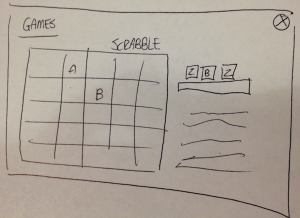
When the user clicks on the Games and Entertainment icon on the viewing screen, users would be able to choose to play a game or browse the internet. The games will be group games such as trivia, iSpy, Scrabble, etc. Within the Scenario John get really bored as the girls were talking to each other and asks Joe if he wants to play some trivia since John loves movies. The girls realized that the guys are having too much fun and join them. |
Paying Order
...
| Panel |
|---|
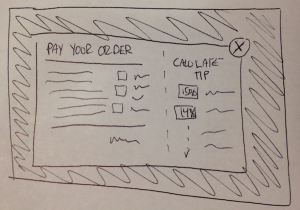
From the View order screen, the user can select to finalize their meal and pay for it. It will display a dynamic receipt on the left hand side and a tip calculator on the right hand side. It can split the bill and each member can pay but credit card and/or cash. Within the Scenario After everybody has gotten stuffed, Joe clicks on the pay button and decides that he'll pay for everyone's meal since he just won the lottery and tips the waitress 31.415% using the calculator. |
...