| Table of Contents |
|---|
GR3
First Iteration Prototype
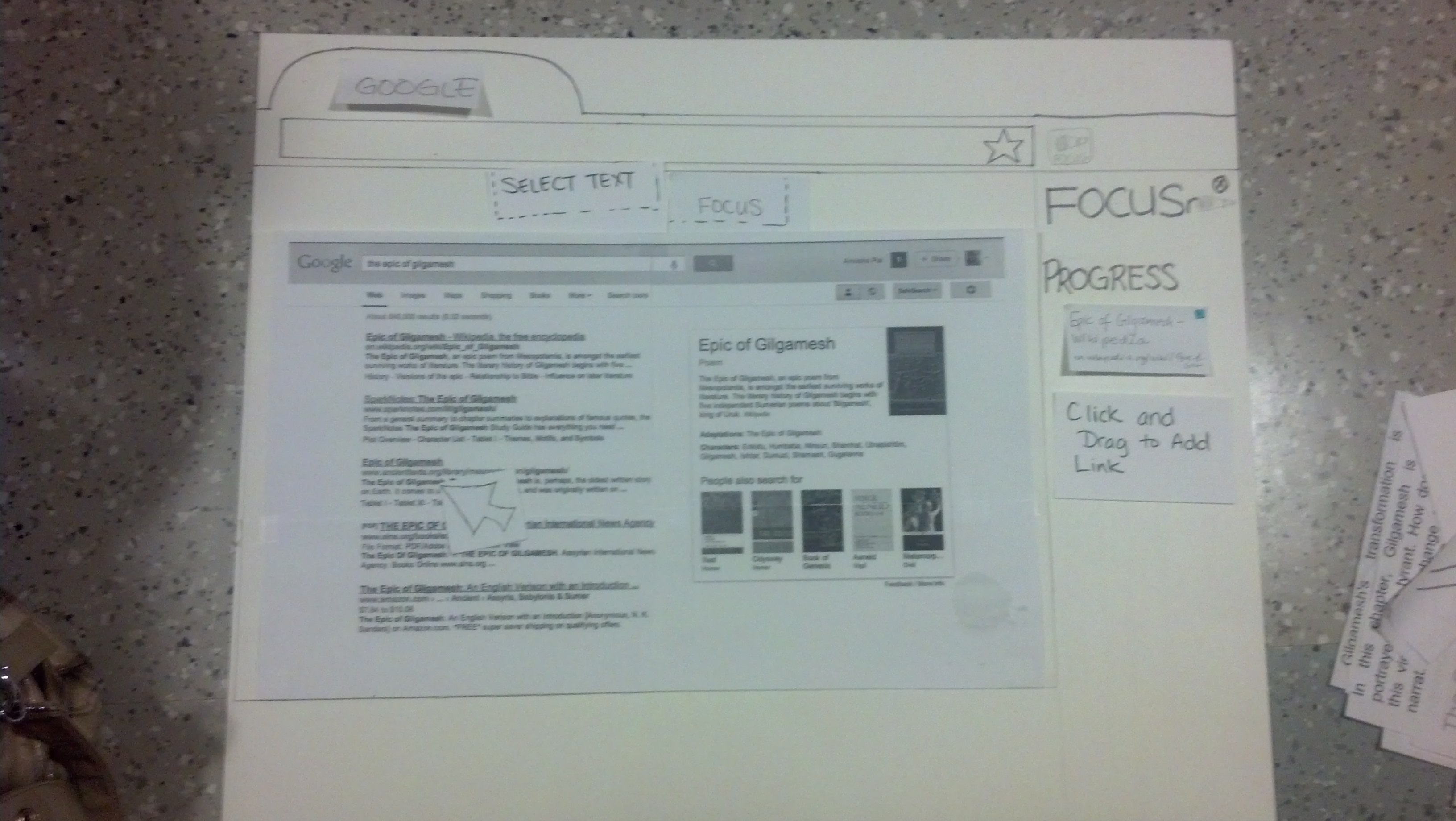
Google page when Refocus.io is open.

Going to one of the articles before reading.
The page is seen with all of its content before it gets separated into smaller "chunks."

Reading the article after it has been "chunked."
The progress list is hidden to avoid distractions for the user.
Overview
Our solution is in the form of a Browser (Chrome/Firefox) Extension that has 2 distinct modes: a Browse Mode and a Read Mode. Browse Mode is when the user interacts normally with their Browser, until they find an article they want to read, and can then go into Read Mode on the article. The user can enter Read Mode in two ways: by choosing to read the entire article or selecting a part of it to read. The workflow below outlines interaction with the Prototype.

Figure 1: Workflow for Protoype
Prototype Screenshots
Action | Prototype Screenshot |
|---|---|
Open Browser, Open Refocus.io extension | |
Click on link of interest. In this case, click on | |
Go into Read Mode for this article by clicking | |
|
|

...
Briefing
- You are a High School Student who has ADHD. You have been assigned to research "The Epic of Gilgamesh" for a school, but you have a lot of trouble focusing. You have installed Refocus.io to help you with this task.
...
- Search for the "Epic of Gilgamesh" on Google.
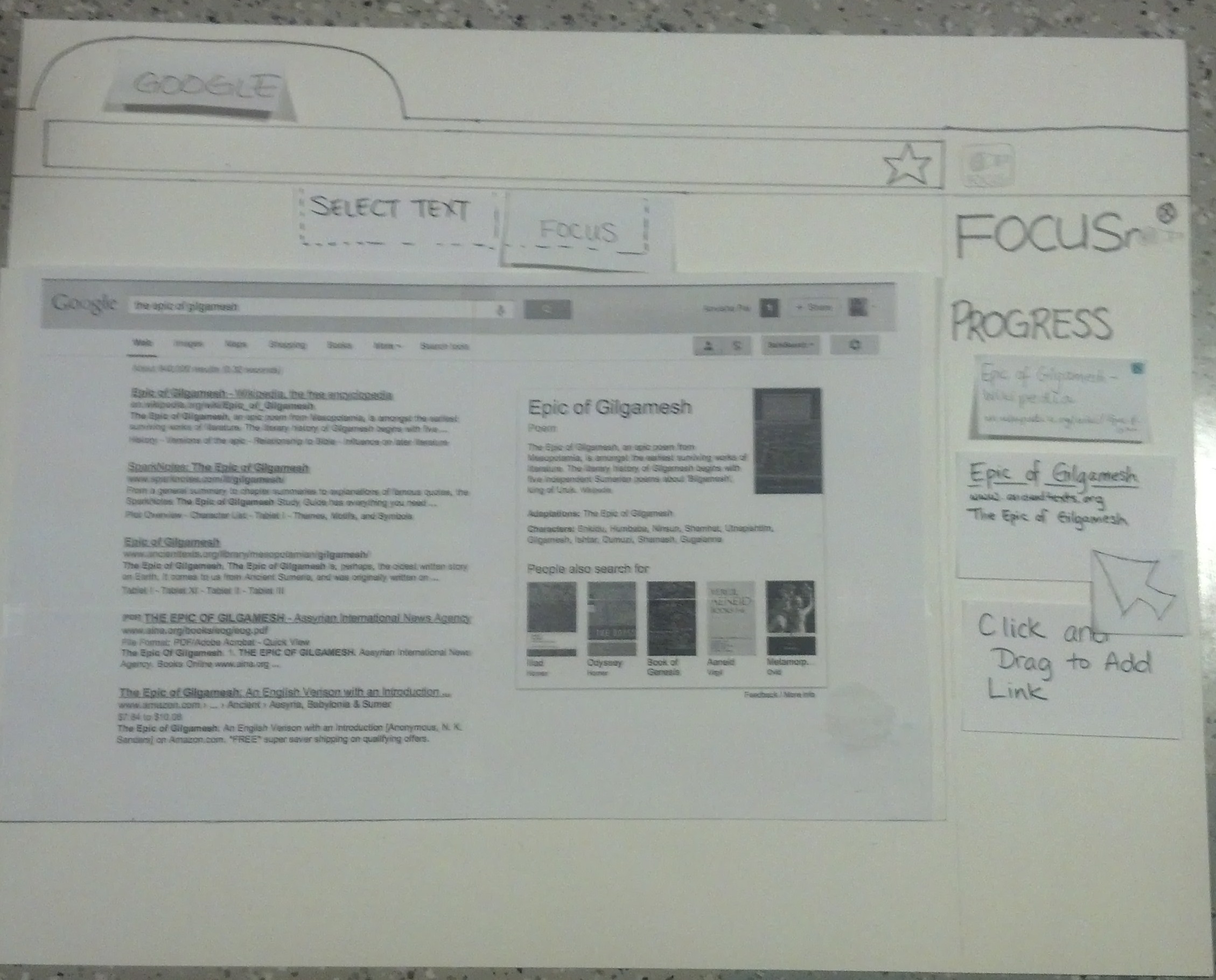
- Add links of interest to the Refocus.io Progress List.
- Navigate to the 3rd Result on Google
- Activate the Refocus.io functionality to start reading the article.
- Read through the article using Refocus.io.
Observations
Interacting with Buttons
- Users thought the idea was good, and many commented they would probably be interested in using this in their day to day reading of articles.
- Users tried to switch between articles in the Progress List, but found that the articles were not clickable.
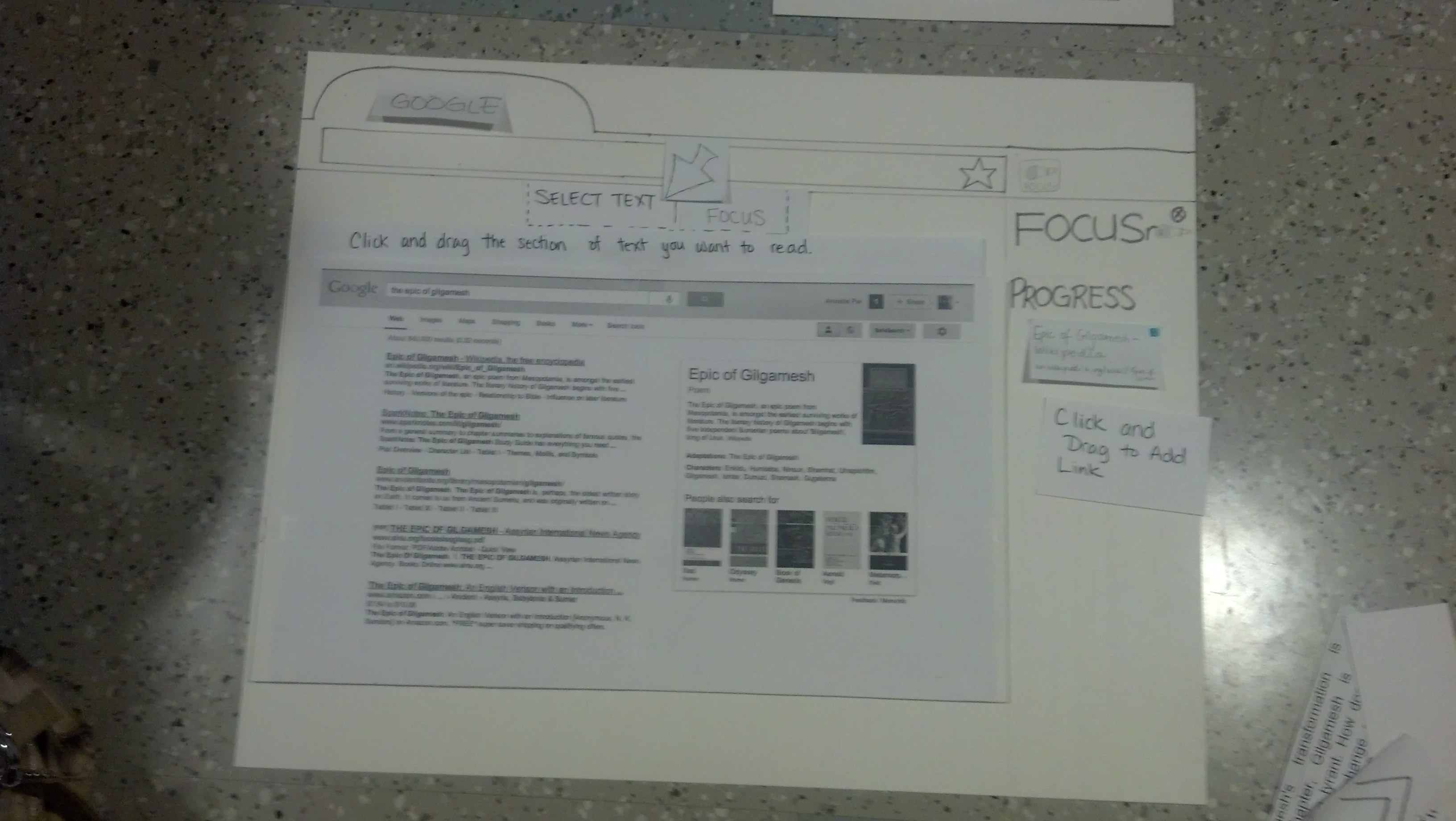
- The "Select Text" icon and functionality were unintuitive. When it was described to users, they actually felt it was the most useful feature.
- After clicking "Select Text," many people were not sure how to proceed. We attempted to make this more intuitive by changing the cursor, but that proved to also be unintuitive.
- When reading "chunks" of an article, clicking the "next" arrow was distracting. Some people were tempted to keep clicking the "next" arrow until they reached the end.
Viewing Content
- When doing searches on Google, users wanted to be able to skim each article, instead of reading them entirely.
- Users liked that they could see the previous section read. Graying out the previous section was a good idea.
- Some people would have liked to know where the specific "chunk" of text was, relative to the rest of the article.
- Some people expressed frustration that they weren't able to switch to view other pages from the Progress List. This occurred because we did not make a mock-up of every page that Google showed.
- When articles chunked immediately, it was not obvious what the page looked like before being chunked.
- Many people were curious to know what commonly visited pages would look like, such as Wikipedia.
...
Second Design Iteration
Improvements based on User Testing
We incorporated the observations from user testing our first iteration (listed in the Observations section above)
Problem from First Iteration | How it is addressed in Second Iteration |
|---|---|
Articles in progress list not clickable | Made articles in progress list clickable so that users can move between articles |
Select text icon/functionality non-intuitive | Changed Select Text icon to an Icon that simply had the words "Select Text" on it |
Don't know where the chunk is located | Everything else (except the current, previous and next chunk) on the page is visible, but it very |
Hard to learn | Hover over icons for hover-text explanations. First time users prompted to hover over icons for |
Need more examples. | Add wikipedia as an example to the prototype |
|
|
Additional Points:
- With adding Wikipedia as an example to the prototype, we were forced to consider what would happen to links the user clicked on in Read/Focus Mode. We added the functionality that links clicked on in Read Mode get added to the Progress List.
- Links can be added to the Progress List by either right clicking and selecting the "Add to Progress List" option, or Clicking and Dragging a link onto the Progress List.
- We changed the name of the Focus button to READ ALL since it is more intuitive
Images of Second Iteration Prototype
We made the changes above and worked on a second iteration. Here are some screenshots that highlight a difference from the First Iteration.
N.B. : These Screenshots still show the "Focus" button instead of replacing it with a "Read All" button, which was the change we made later.
Action | Prototype Screenshot |
|---|---|
Open Browser, Open Refocus.io extension |
|
Add a Link of Interest to the Progress List using | |
Click on the Select Text button to go into Read Mode | |
In Read Mode we can expand or Collapse the | |
Expanded Progress Pane | |