...
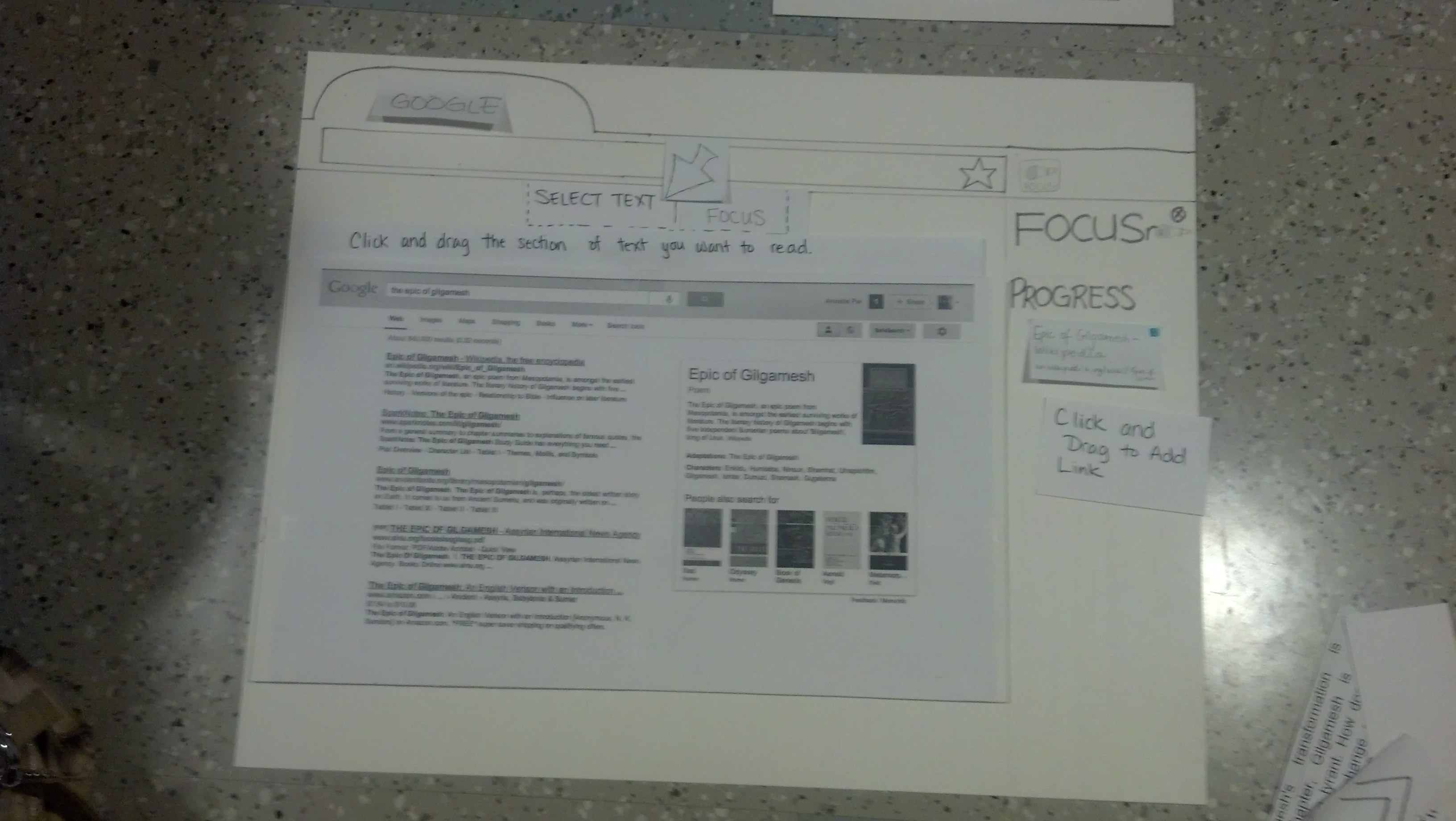
- When doing searches on Google, users wanted to be able to skim each article, instead of reading them entirely.
- Users liked that they could see the previous section read. Graying out the previous section was a good idea.
- Some people would have liked to know where the specific "chunk" of text was, relative to the rest of the article.
- Some people expressed frustration that they weren't able to switch to view other pages from the Progress List. This occurred because we did not make a mock-up of every page that Google showed.
- When articles chunked immediately, it was not obvious what the page looked like before being chunked.
- Many people were curious to know what commonly visited pages would look like, such as Wikipedia.
Second Design Iteration
Improvements based on User Testing
...
Problem from First Iteration | How it is addressed in Second Iteration |
|---|---|
Articles in progress list not clickable | Made articles in progress list clickable so that users can move between articles |
Select text icon/functionality non-intuitive | Changed Select Text icon to an Icon that simply had the words "Select Text" on it |
Don't know where the chunk is located | Everything else (except the current, previous and next chunk) on the page is visible, but it very |
Hard to learn | Hover over icons for hover-text explanations. First time users prompted to hover over icons for |
Need more examples. | Add wikipedia as an example to the prototype |
|
|
Additional Points:
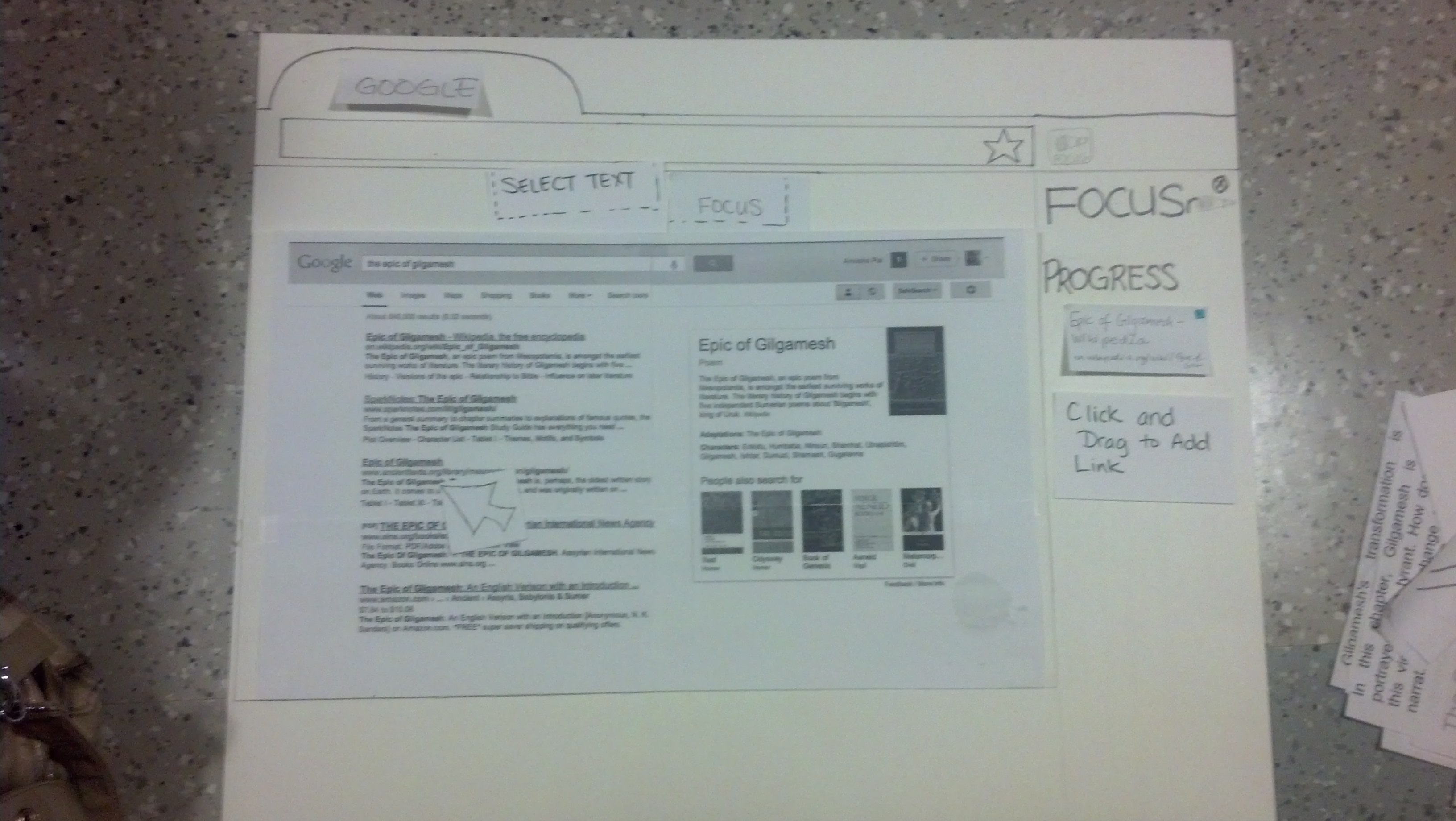
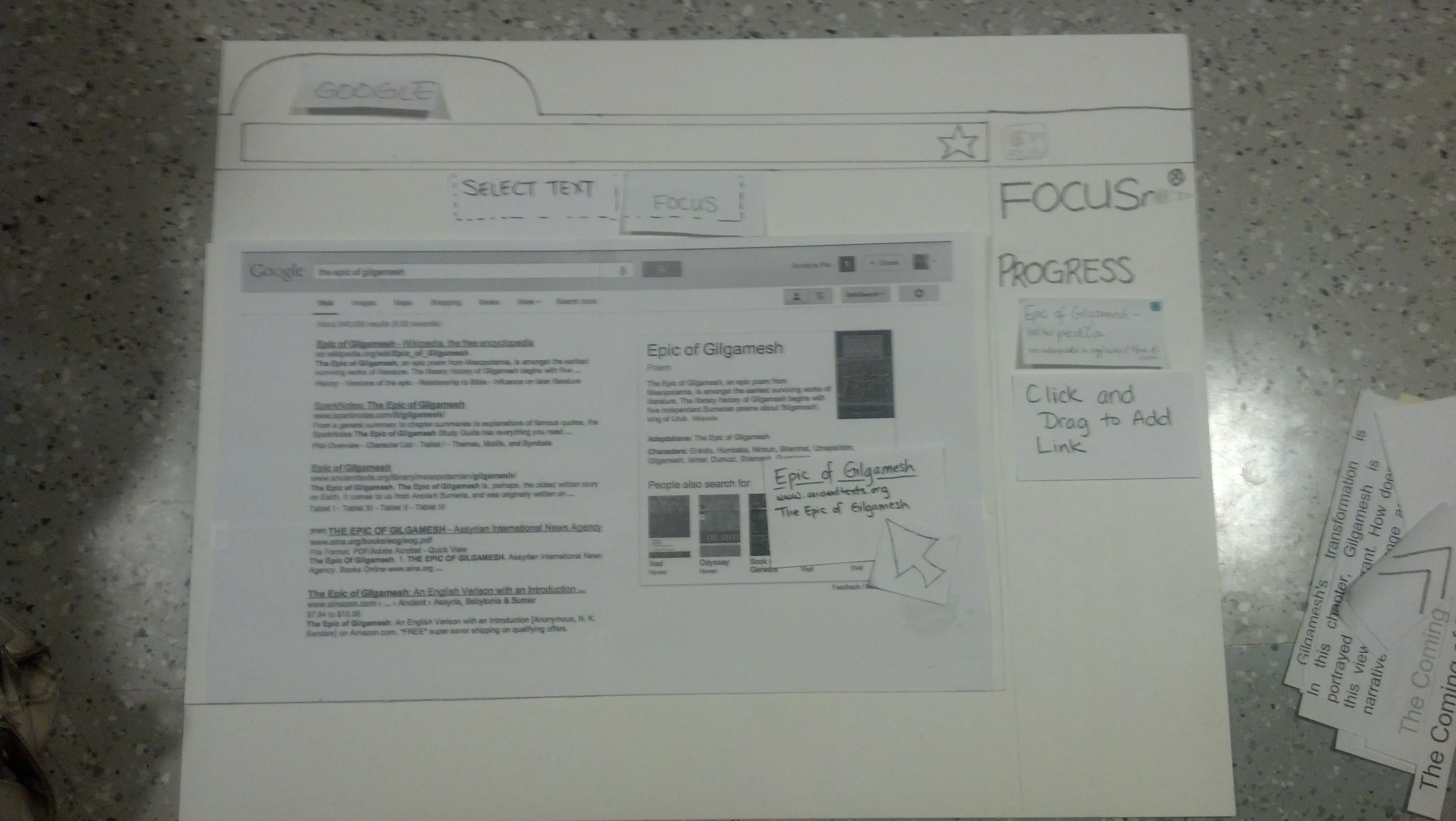
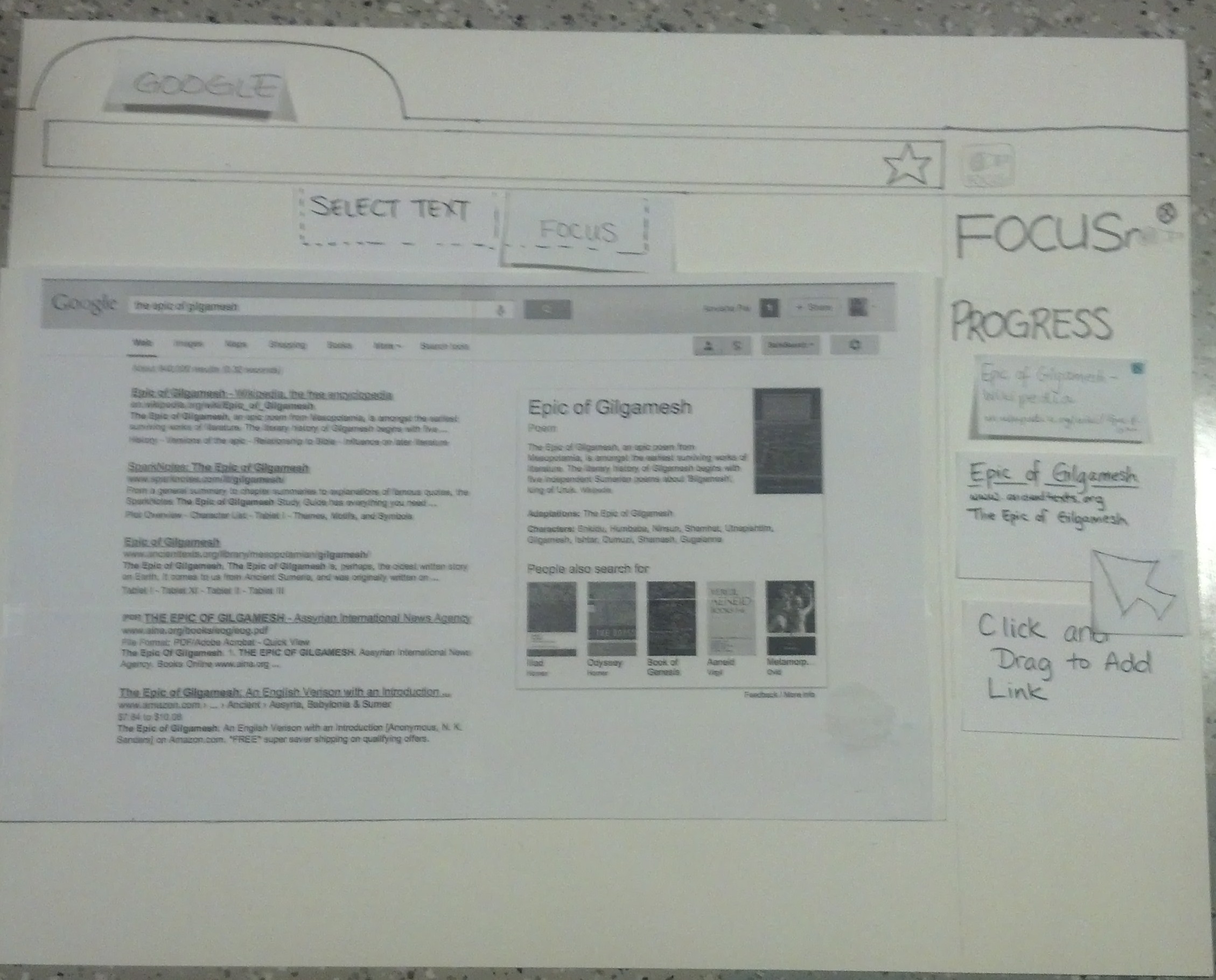
- With adding Wikipedia as an example to the prototype, we were forced to consider what would happen to links the user clicked on in Read/Focus Mode. We added the functionality that links clicked on in Read Mode get added to the Progress List.
- Links can be added to the Progress List by either right clicking and selecting the "Add to Progress List" option, or Clicking and Dragging a link onto the Progress List.
- We changed the name of the Focus button to READ ALL since it is more intuitive
...
We made the changes above and worked on a second iteration. Here are some screenshots that highlight a difference from the First Iteration.
N.B. : These Screenshots still show the "Focus" button instead of replacing it with a "Read All" button, which was the change we made later.
Action | Prototype Screenshot |
|---|---|
Open Browser, Open Refocus.io extension |
|
Add a Link of Interest to the Progress List using |
|
...
|
...
Click on the Select Text button to go into Read Mode | |
In Read Mode we can expand or Collapse the | |
Expanded Progress Pane | |
|
|
|
|
|
|
|
|
|
|
|
|
|
|
|
|
|
|
|
|
|
|
| |