Spam emails are unfortunately a daily fact of life in our electronic age but fortunately MIT provides a key tool to block emails that continue to come from bad senders. All MIT Exchange email users have access to Spam Quarantine to stop the spam mail before it gets into your Exchange email inbox.can configure their Exchange email in OWA to block emails from specific addresses or address patterns.
Information about Spam Quarantine Emails at MIT can be found here:
http://ist.mit.edu/spam
...
Setting up white or black lists for email coming from outside of MIT
For users who manage a white or black list (good and bad senders list), you will need to create those lists in OWA. Keep in mind this method only works for full email addresses.
• Log into OWA (owa.mit.edu)
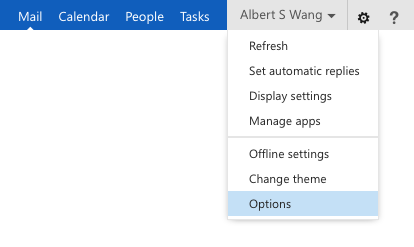
• Gear icon (upper right corner of web page) -> Options -> See All Options...
• Select “block or allow”
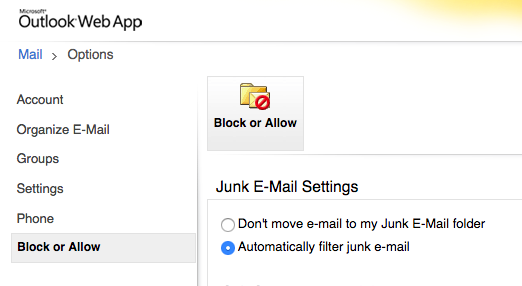
• Make sure the Automatically filter junk email radio button is selected
• White listed recipients can be added to “safe senders and recipients,” and denied senders added to “blocked senders.”
Setting up a filter for to block phishing attempts with known patterns
In order to stop phishing emails that have a pattern of ANYTHING.mit@gmail.com you can create a filter in OWA to block all addresses with the pattern mit@gmail.com
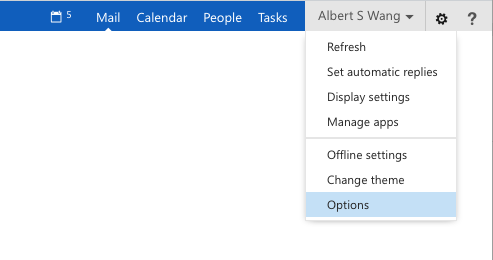
- To do so, log in to OWA and go to Options.
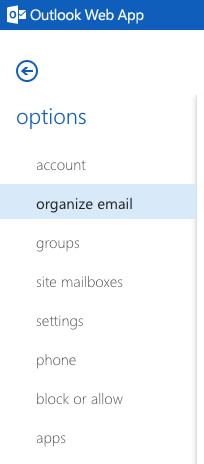
- In options, select "organize email" in the left nav.
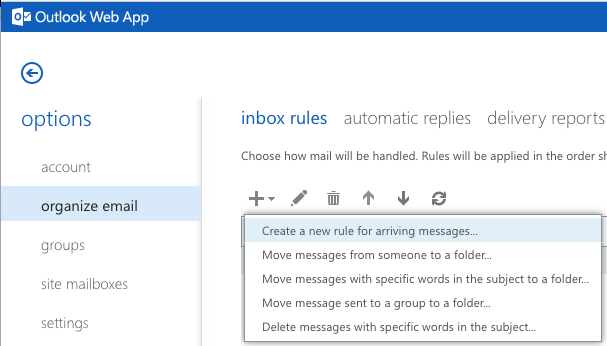
- In organize email, hit the "+" and select "Create a new rule for arriving messages..."
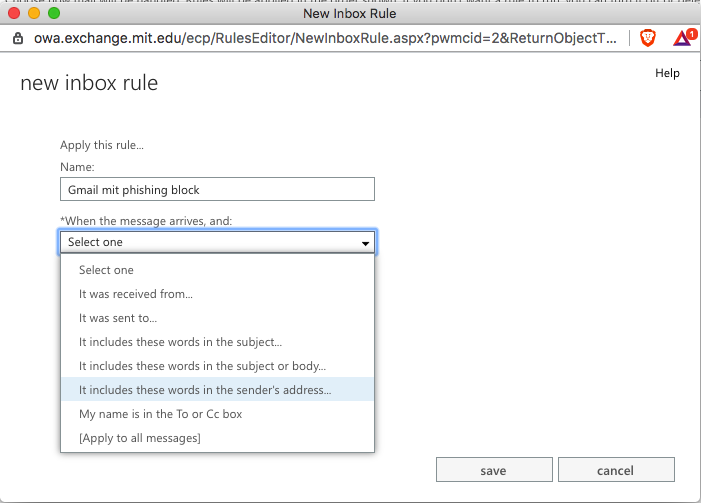
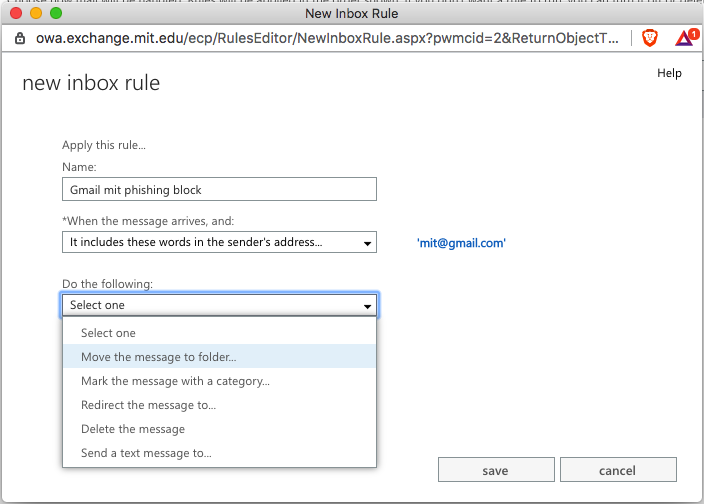
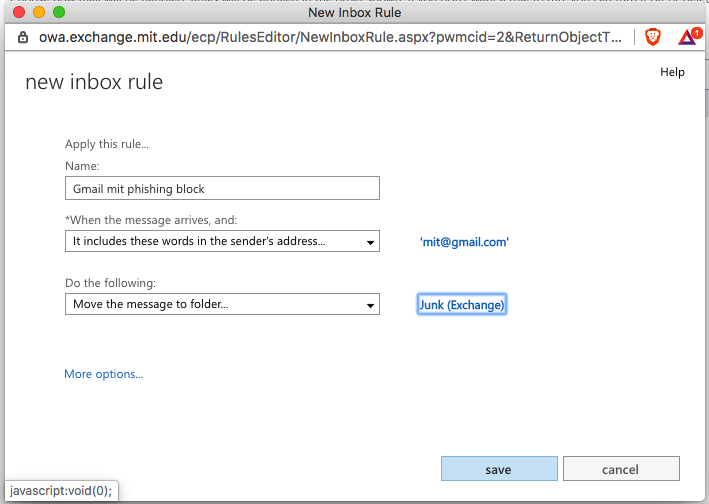
- For the name, we call this filter "Gmail mit phishing block". For *When the message arrives, and" select "It includes these words in the sender's address..."
- For the "specify words or phrases" type in the pattern mit@gmail.com. This will block all email addresses that have this pattern (for example impersonatedmitperson.mit@gmail.com).
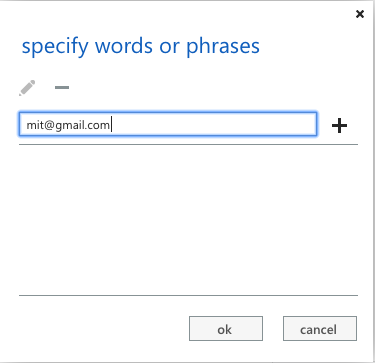
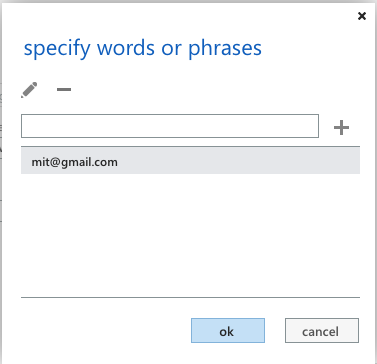
- Once you finish typing mit@gmail.com, VERY IMPORTANT, you must hit the "+" sign to add it. Once you do it will appear under the text box as text with a gray background.
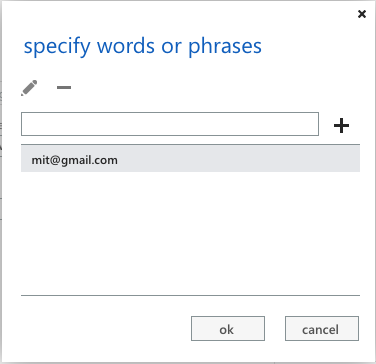
- Next, click "OK"
- In the "Do the following:" select "Move the message to folder..."
- Select a folder you want the phishing email to go to. In this case, we have selected "Junk (Exchange)". Click "ok" after you're done.
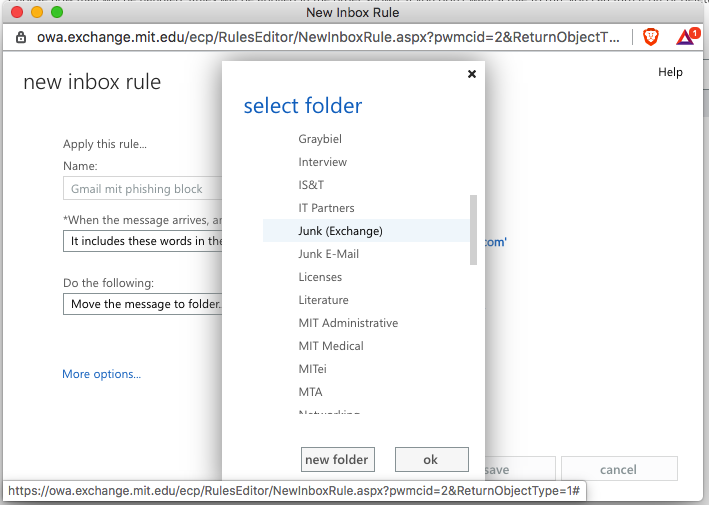
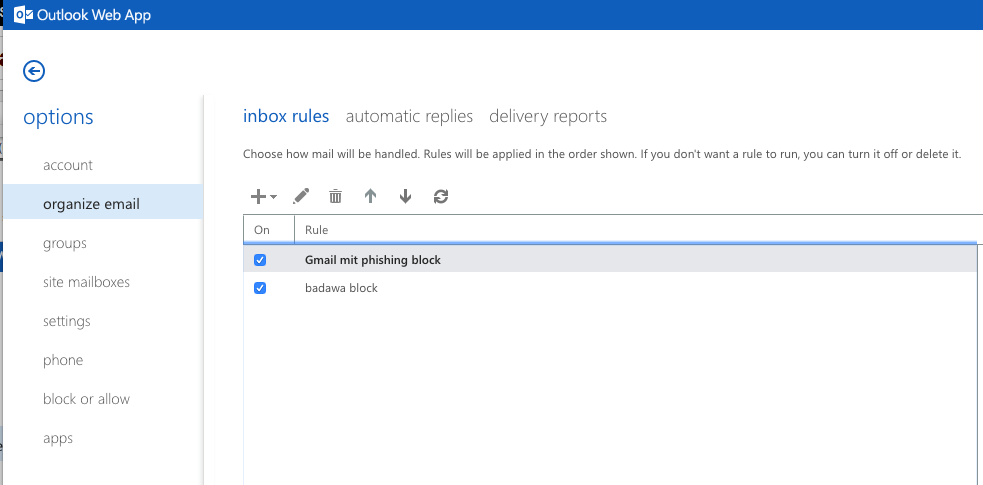
- Next confirm all the information looks correct. If so, click on "save".
- You should now see the rule listed in the inbox rules page. Please make sure the rule is checked. That's it! The rule is now live. You may log out of owa.