...
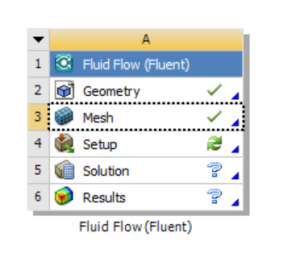
Once satisfied with the Mesh, minimize the Mesh Editor, right click Mesh, and click Update. You should see a green check mark in the Workbench area.
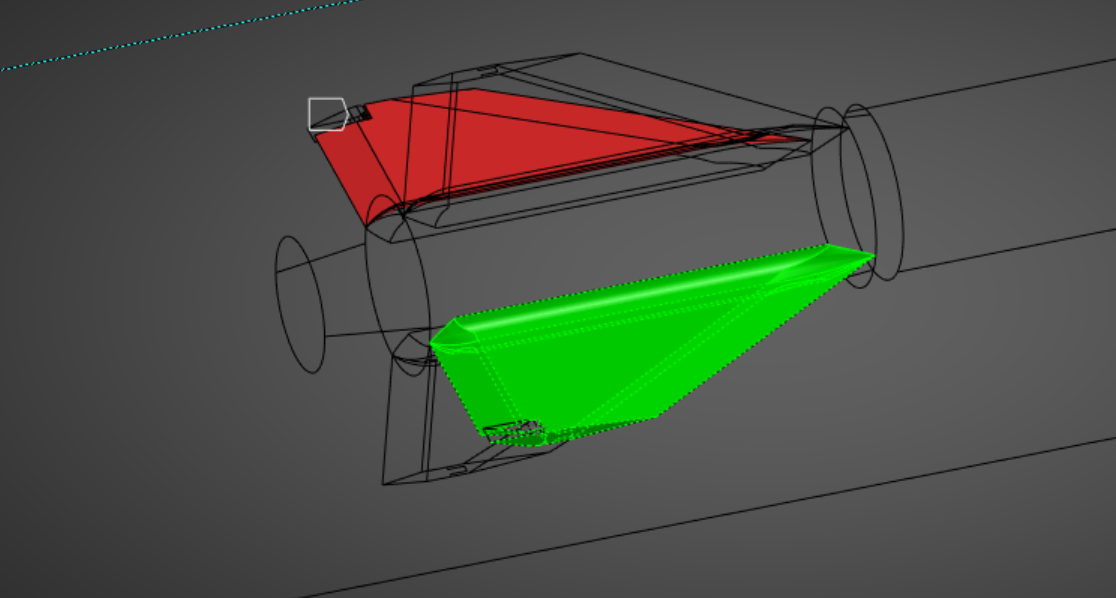
If you want to look at quantities on specific regions of the model, you'll need to set up Named Selections. To do this, go back into the Mesh Editor. Set the view to Wirerframe (see below).

To create a Named Selection, hide one side of the volume mesh wall by right clicking and selecting Hide Face. Now you can access internal faces. Hold the Control Key and select all internal faces in the group (which should all be highlighted in green), then right click anywhere, and click "Create Named Selection". If you accidentally hide a face, show all faces with Ctrl + F8, and similarly Ctrl + F9 to show all hidden bodies.
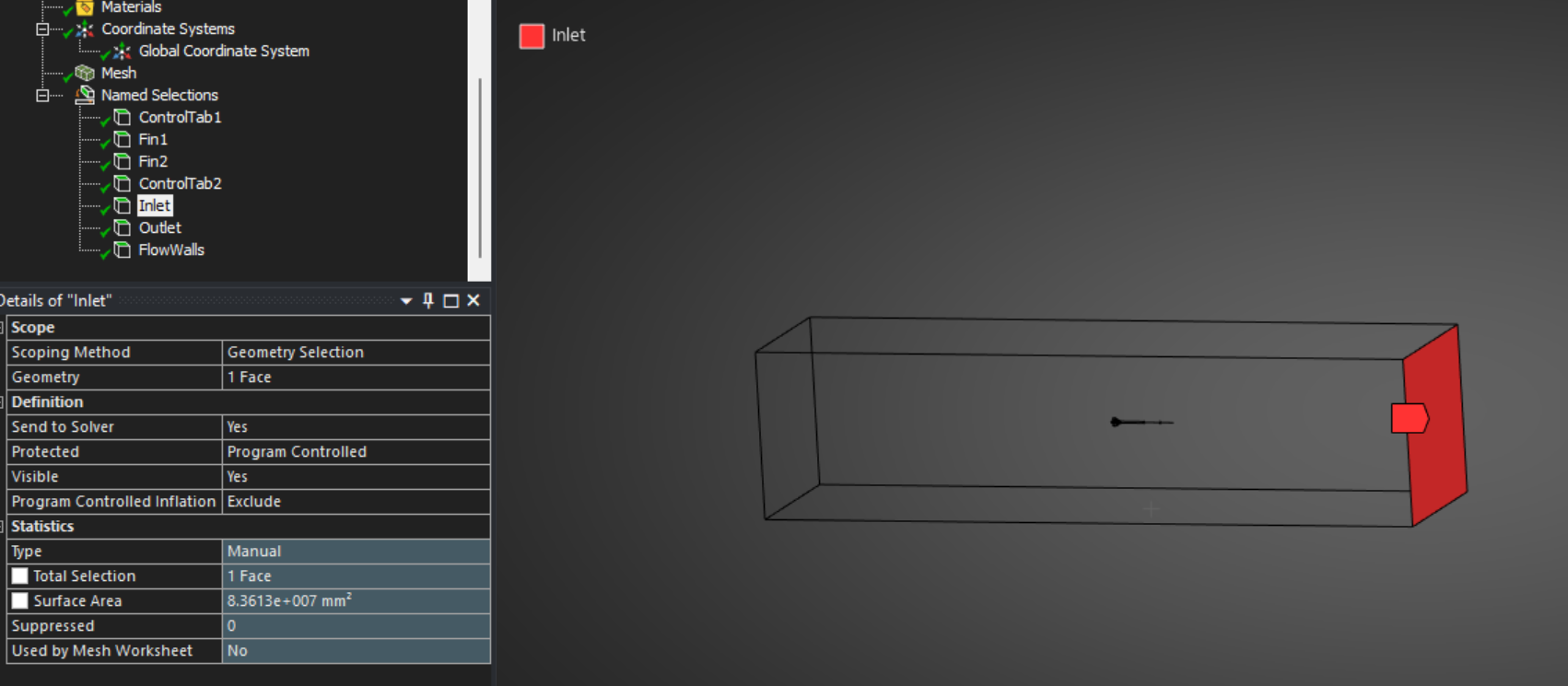
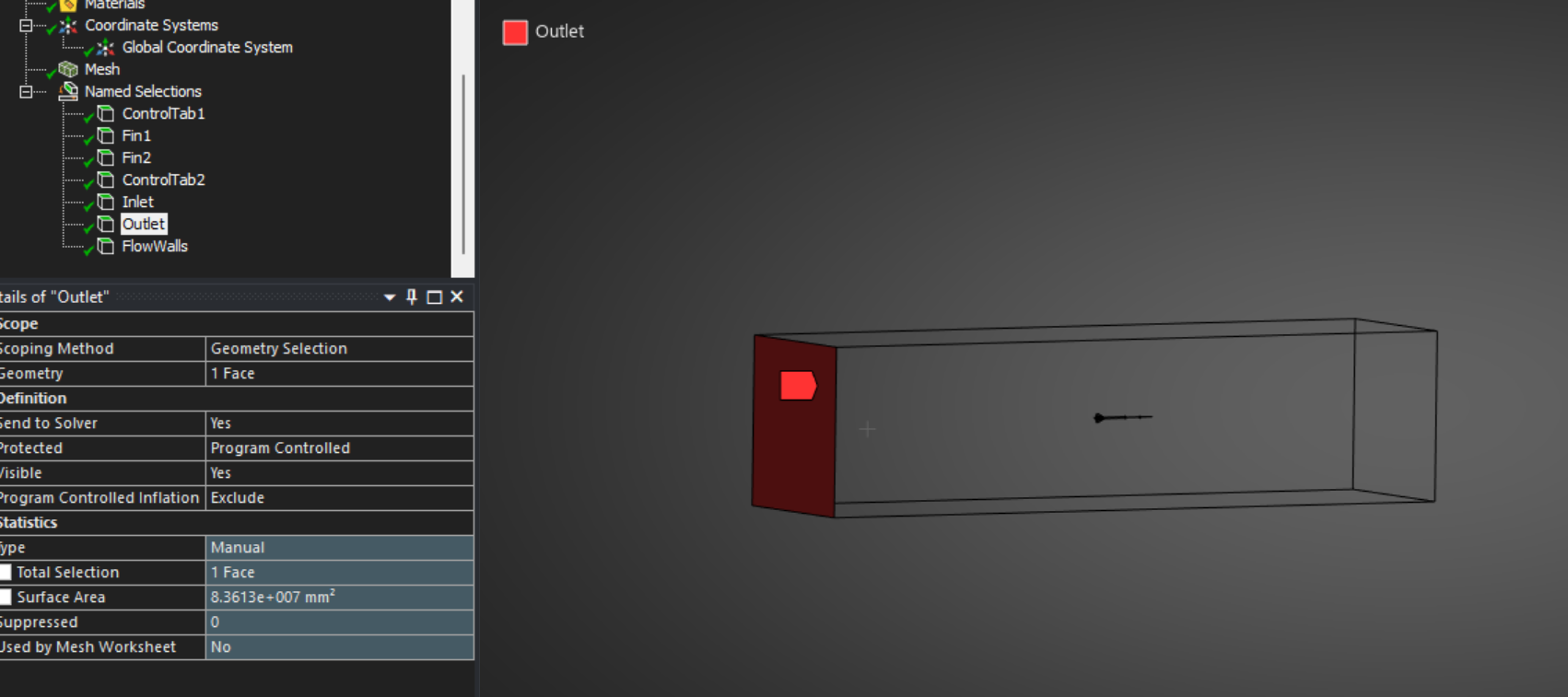
Add regions for Inlet, Outlet, and Side of Boundary regions along with the features of interest.
Right click Setup and click Edit, which will open Fluent. You'll be presented with the Fluent Launcher – allocate a good portion of your cores to the Solver to help speed up simulations (I've allocated 16 of my 24 here).
...