...
Sketch | Storyboard | Learnability | Efficiency | Safety |
|---|---|---|---|---|
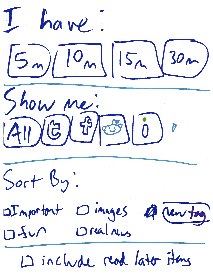
| To use this filtering interface for our above scenario, Bob would have to mark all of the programming-related posts from Google+ manually and in advance with a tag (like "cool code" or something). If Hubbub could infer this pattern, the design would match our scenario. | This interface is very easy to use. There are only items and check boxes, so Bob can easily try out some of them to see what they do if he's not sure. | This is extremely inefficient, because it only filters on things you've already tagged, aside from what sources to include. Thus Bob has to tag everything he wants to see before he can properly filter for them. | If Bob accidentally filters on the wrong thing, he will have to start this process all over again. |
Save Items
Sketch | Storyboard | Learnability | Efficiency | Safety |
|---|---|---|---|---|
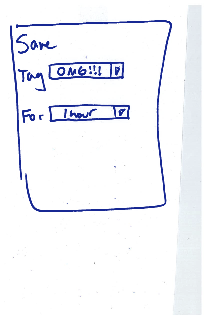
| This is an example of a menu that would appear after hitting a save button on the page. Here, Bob's previously created/used "save" tags are listed in the first drop-down menu. Since bob has categorized code-related items before, he will already have a "code-related" tag of some kind in the list. This would just be a special tag that makes sure items don't get deleted. For example, if we add options for the user to delete items that have been around for a long time (month or something), items with the save tags would be ignored. | It's pretty clear what is being saved. But Bob may not realize how to create a new save tag with this design. He would have to explore the drop-down menus to see what they do. | This is pretty efficient for saving a single item. Bob could save an item in 1 tap on his phone using the default menu values. As the list of save tags list grows, we can allow scrolling/arranging options for the save tags to speed up the search for the correct tag. | The item Bob is trying to save is displayed to make sure he's saving the right thing. |
...