 Image Added Image Added
|  Image Added Image Added
| 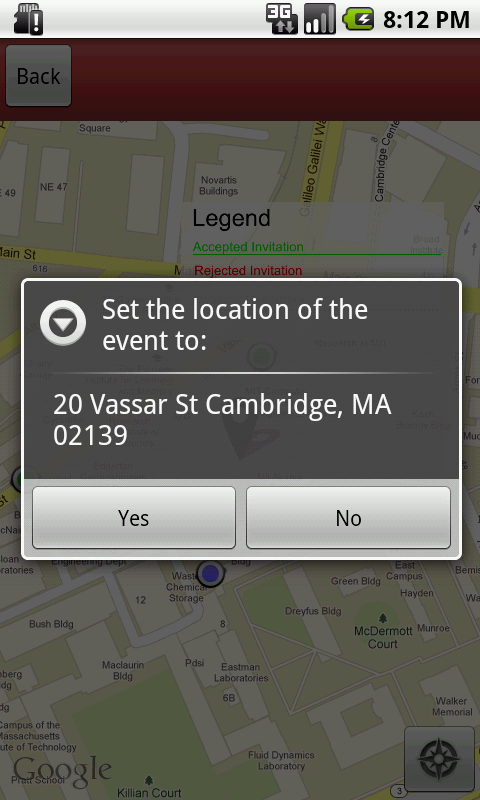 Image Added Image Added
| 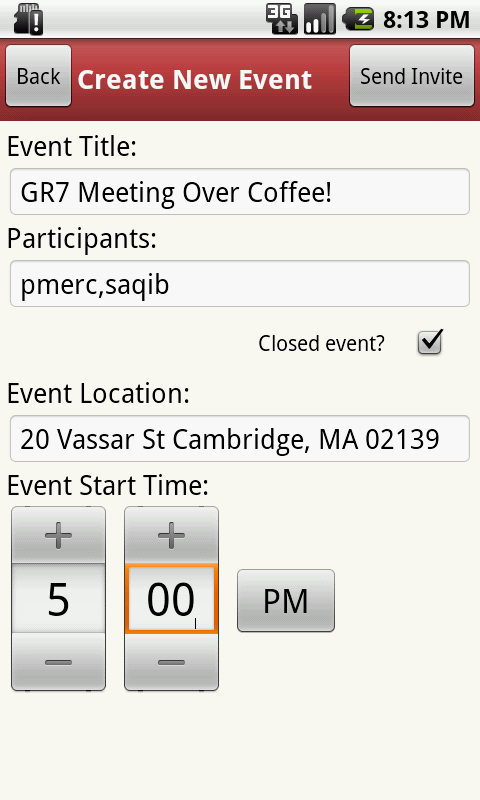 Image Added Image Added
| 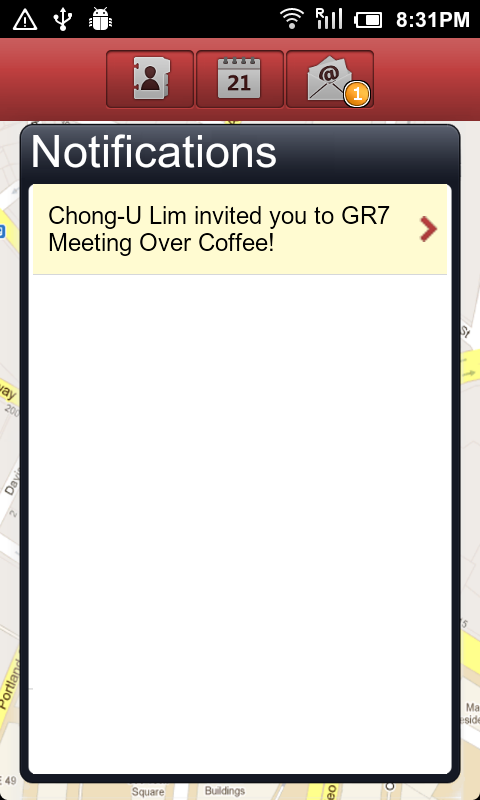 Image Added Image Added
| 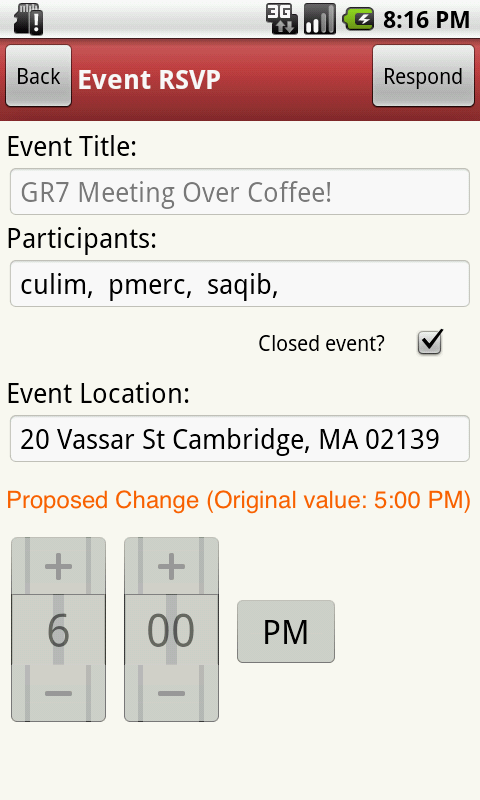 Image Added Image Added
| 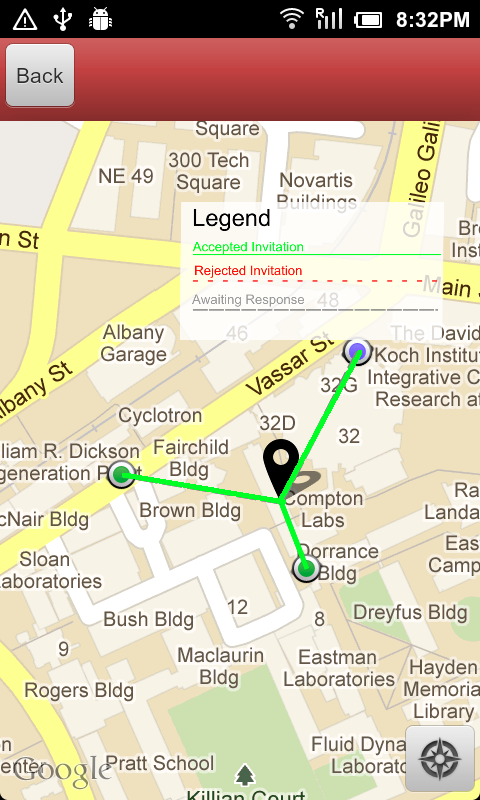 Image Added Image Added |  Image Removed
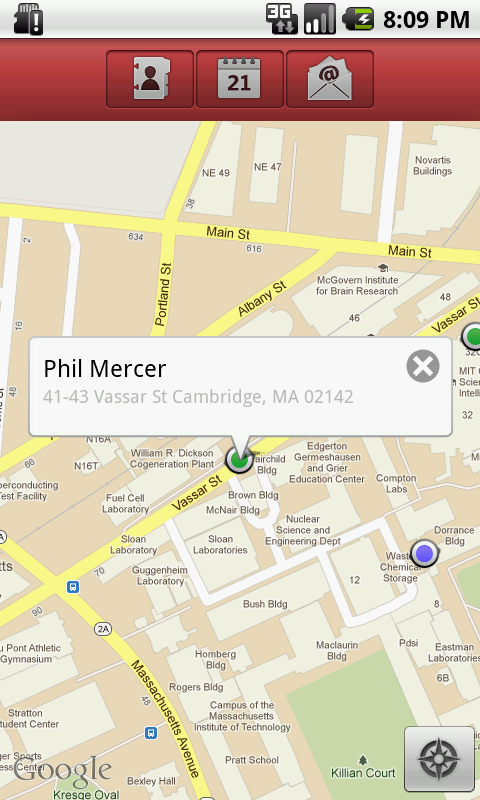
1. This is the Home
screen of our Smart
phone app.
It contains a Action
bar on the top and a
map on rest of the space
showing user's and user's
friends' current location. Image Removed
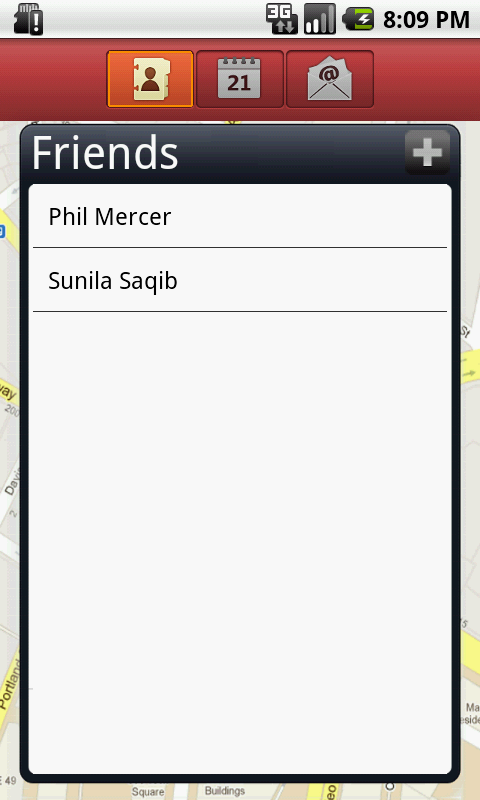
2. Tapping on the first icon
in action bar displays the
list of friends in a pop up
window.
There is a "+" button on
top right corner of this pop
up window, which takes
user to "Add a friend" page. | Image Removed
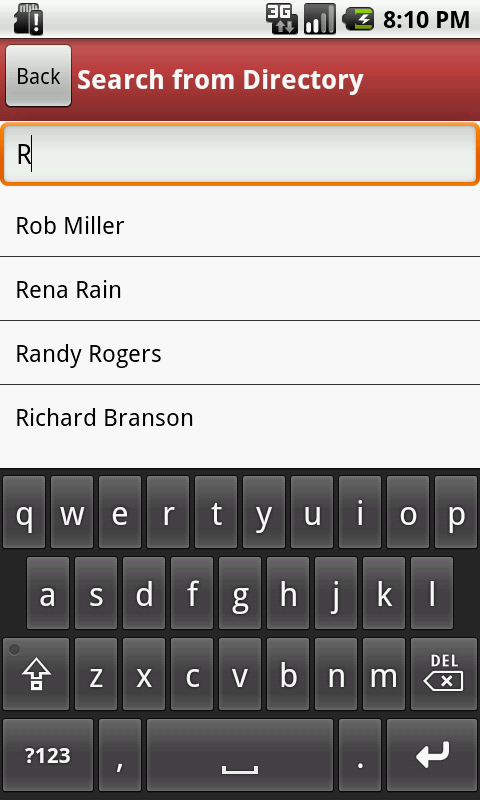
3. This is "Add a Friend"
page.
It contains a Search
bar on the top and
Keyboard at the bottom.
The search is adaptive and
incremental, and results
start showing up as the
user type.
If the user scrolls through
the search results the
keyboard hides away and
when user taps on the
search bar the keyboard
appears again. Image Removed
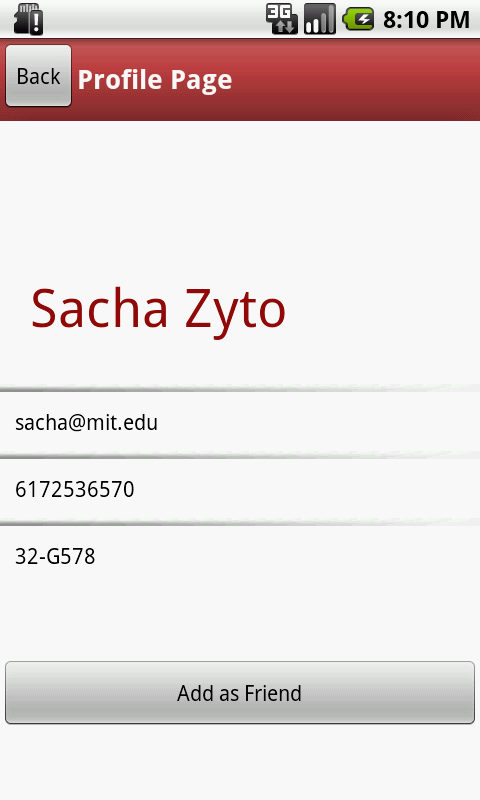
4. This is the "Profile" page.
If the owner of this profile is
not added as friend in
user's list, the button on the
bottom says "Add as
Friend", but if that person
is users friend the button
is labeled "Show current
Location on Map" Image Removed
5. When user taps on third
button on the action bar,
this Notification pop up
window opens up.
When there is a new
notification, a bubble shows
up on the action bar button
with the count of new
notification on it. Image Removed
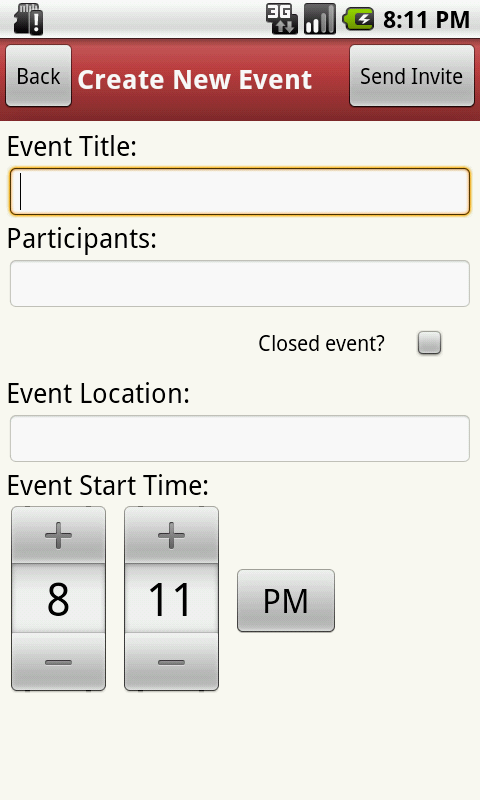
6. When user Taps "+"
button on the pop up
window "Events" (pops up
through the 2nd action
button) this "Create event"
page sows up.
it contains the following
fields
1. Title
2. Start Time
3. Participants
4. Closed Event
5. Location
Image Removed
7. Select Participants | Image Removed
8. Two participants selected
Image Removed
9. Setting time of an event
using ticker
Image Removed
10. This screen shows the
location connected to all
the invitees, when a user
set location for that event.
These lines are grey to
indicate that invitees have
not responded (RSVP'd) to
the invitation yet. | Image Removed
11. when user tap the
"Location" Field on Create
Event Page this map
shows up.
3 Pins( shown in red) drops
from the top on suggested
locations.
The user's current location is
shows using Blue dot.
Selected Participants' current
location is shown by multiple
Green dots on this map.
Image Removed
12. Browsing through the
available meeting places in
a Building. | Image Removed
13. Confirmation pop up at
the bottom of Set Location
Page | Image Removed
14. RSVP page, contains
the event details.
all the details have
affordance of being edit-able.
the buttons on the bottom
are enabled and disabled
depending on whether user
made a change
in the plan ot not.
Image Removed
15. View Event Location in
RSVP shows Friends
connected to the event
location by colored lines
representing their RSVPs
(red green and gray)
Currently showing red and
green only
|