...
Individual Design Sketches
Alice
 Image Removed
  Image Removed
 Image Added
  Image Added
Group Designs and Storyboards
...
Because sewing is a handcraft, it may not be convenient to have a computer with you to refer to at all times. Something smaller and more portable may be desired. Therefore, one of our designs is for a smaller screen or smartphone-like device.
| Panel |
|---|
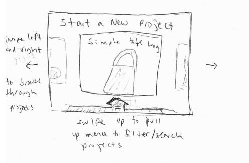 Image Added Image Added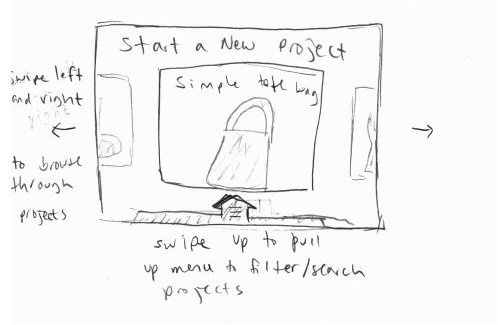 Image Removed Image Removed
When you decide to start a new project, you see this screen where you can swipe left and right through various projects to browse through them. Tapping on the project image takes you to a more detailed description of the project. To make browsing easier, so that you don't have to linearly go through all of the projects, you can swipe upwards to pull up a menu where you can filter or search through all of the projects to find one that more closely matches your needs.
|
| Panel |
|---|
 Image Added Image Added Image Removed Image Removed
The pull up menu for searching/filtering through projects.This lets you filter the projects to browse through by kind of project (plushie, clothing item, etc), skill level, etc. You can also search through the projects by name. There should be autocomplete that pops up as you type it.
|
| Panel |
|---|
!sb3.jpg|align=left,thumbnail!Clicking on a project gives you more information about it. You see a picture of the finished project, a difficulty rating, a list of materials, and a short text description. With the list of materials comes a link to google maps or yelp that can help you find nearby fabric stores so you can buy the materials more easily. It may also give you some tips for materials, for example, as a money-saving tip, it may recommend using fabric from a old t-shirt for a small project instead of going out to buy completely new fabric. |
| Panel |
|---|
 Image Added Image Added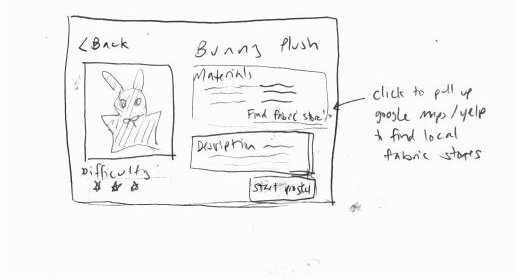 Image Removed Image Removed
When you decide to start a project, you see this screen. It is a list of the steps of the project, with a short version of the instructions ("Print out pattern pieces", "Cut out pattern pieces", "Sew piece X and Y together"). You can click on each step to go directly to that step for easier navigation. There is also a very large and obvious "BEGIN" button that will start you on step 1.
|
| Panel |
|---|
 Image Added Image Added Image Removed Image Removed
When you are actually doing one of your steps, it looks something like this. It is primary a screen that has a big illustration of the step and the short instruction for that step in large text, to make it easier to see clearly on a small screen. Detailed text instructions can be pulled up if you swipe the bottom upwards, as well as a video link for this step, if it is available. Because it can be difficult to use your hands or keep watching the screen while you are busy sewing, you can press the button on the upper right to have the detailed instructions read aloud to you. There is also a very prominent (and red, not shown in this sketch) alert button on the top right of the screen. Tapping on it will pull up common mistakes and warnings for this step. It may also flash briefly the first time you navigate to this step as an additional reminder. The bottom right contains tips and additional help. If you tap on that, it can provide links to relevant tutorials. For example, in the sewing step illustrated in this sketch, it may lead you to a tutorial on how to sew a back stitch.
|
| Panel |
|---|
 Image Added Image Added Image Removed Image Removed
You can put down your work at any time. Your progress will be saved. You can have several active projects at once, which you can go through to see your progress through them and resume. From this screen you can also access the "start a new project" browsing screen. You can also go look at just the basic tutorials, instead of a specific project as well.
|
| Panel |
|---|
 Image Added Image Added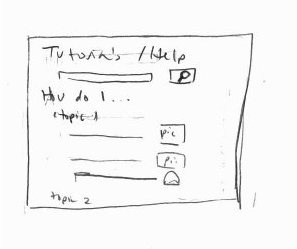 Image Removed Image Removed
If looking through just the tutorials, you may see a screen like this, where you can search through them and also browse as well. They will be worded in ways that are easier for beginners to understand, like "how do I shorten the ends of my pants" vs "hemming pants".
|