Scenario
Inspired by her friend Yvonne’s creations, Zelda decides that she too wants to pick up sewing. Unfortunately, she does not know where to start, and Yvonne is too busy to teach her, so Zelda is mostly on her own. Luckily, Yvonne directs her to our site.
Because Zelda wants to learn not just how to do small repairs but also to create things of her own, she wants to start learning how to sew by jumping into a project immediately. She finds that she learns best through having a hands-on project, and she wants to have a finished result to show off.
She browses through suggested beginner sewing projects and rejects a pillowcase project because it is too boring and a skirt because it seems like it would take too long to hand sew. Eventually she decides to start making a simple bunny plushie because it is cute.
She reads over the instructions and thinks that they are doable. She gets a list of the required materials (X amount of cloth 1, Y amount of cloth 2, thread, fiberfill/stuffing, needles, etc) and goes out to purchase these materials. For some cloth 2, it turns out she can use an old T-shirt that she no longer wears that is in the pattern that she wants for this bunny.
She then begins to go through the detailed instructions one at a time. First, she prints out the pattern for the bunny and cuts out the individual pieces. Following the instructions on the website, she pins the patterns to the fabric and very carefully cuts out her fabric in the shapes of the pieces and sets them aside in an orderly manner before moving on to her next step.
She has some trouble threading her needle because she is not very experienced at this kind of thing, but she finds a tutorial on how to use a needle threader.
Carefully following instructions she begins to sew the pieces of her plushie together. She isn’t very sure how best to go about sewing, so she refers to some reference material about how to do a basic blanket stitch. She was also very close to sewing her pieces together inside out, but fortunately she was reminded beforehand to make sure the right sides of her fabric are facing inwards before she sews. She makes a few more small mistakes, such as accidentally sewing both sides of an ear together when she only needed to sew one, but she notices her mistake not long after she makes it and is able to fix it by only removing a few stitches. Eventually she finishes up her basic bunny shape.
She wants to customize her bunny by adding button eyes and embroidering her name on its stomach. Because these elements are not part of the main pattern, she finds tutorials on how to sew on decorative buttons and how to do simple embroidery text. For the embroidered text, she finds that she needs embroidery floss, not her normal thread, so she first goes to get some of that before she does this step.
When she is done with her bunny, she decides to show it off by posting a picture of it online and adding notes about its creation process. After she is done, she thinks about the things she liked and didn’t like about the process and wants to find projects that have more of what she liked and less of what she didn’t. She also notices some areas of the project that she had difficulty with.
Because she is thinking of picking up sewing as a long term hobby, she wants to improve on some of the areas that were difficult for her while strengthening her skills in the areas that she is particularly interested in. She inputs all of her preferences and the site recommends a range of potential future projects that align with her interests.
Individual Design Sketches
...
Group Design Sketches and Storyboards
Typical Website
| Panel |
|---|
You are logged on at the "Find Project Page" and want to find a new project to work on. You use the search filters on the left to narrow the search down to projects you might like to work on. You think the stuffed bear looks like a fun project, so you click its picture and start working on it as your next project. |

| Panel |
|---|
You are taken to the "Work on Project Page", where you can see what needs to be done for each step. There are warnings for common mistakes, links to reference tutorials, and pictures to help guide you. You can also save your progress and take a break if necessary. |

| Panel |
|---|
Lastly, you submit a review of the project on the "Review Project Page". Here you can rate how fun or hard your recently completed project was, can say what you learned, and can give additional feedback and suggestions to the developers. |

...
Because sewing is a handcraft, it may not be convenient to have a computer with you to refer to at all times. Something smaller and more portable may be desired. Therefore, one of our designs is for a smaller screen or smartphone-like device.
| Panel |
|---|
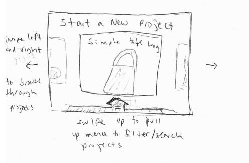
When you decide to start a new project, you see this screen where you can swipe left and right through various projects to browse through them. Tapping on the project image takes you to a more detailed description of the project. To make browsing easier, so that you don't have to linearly go through all of the projects, you can swipe upwards to pull up a menu where you can filter or search through all of the projects to find one that more closely matches your needs. |
| Panel |
|---|
The pull up menu for searching/filtering through projects.This lets you filter the projects to browse through by kind of project (plushie, clothing item, etc), skill level, etc. You can also search through the projects by name. There should be autocomplete that pops up as you type it. |

| Panel |
|---|
Clicking on a project gives you more information about it. You see a picture of the finished project, a difficulty rating, a list of materials, and a short text description. With the list of materials comes a link to google maps or yelp that can help you find nearby fabric stores so you can buy the materials more easily. It may also give you some tips for materials, for example, as a money-saving tip, it may recommend using fabric from a old t-shirt for a small project instead of going out to buy completely new fabric. |

| Panel |
|---|
When you decide to start a project, you see this screen. It is a list of the steps of the project, with a short version of the instructions ("Print out pattern pieces", "Cut out pattern pieces", "Sew piece X and Y together"). You can click on each step to go directly to that step for easier navigation. There is also a very large and obvious "BEGIN" button that will start you on step 1. As you complete steps, you can also check off individual steps here, and uncheck them as well. This does not make any major changes to the system, but is there for the user's own benefit to help them visualize their progress. |

| Panel |
|---|
When you are actually doing one of your steps, it looks something like this. It is primarily a screen that has a big illustration of the step and the short instruction for that step in large text, to make it easier to see clearly on a small screen. Detailed text instructions can be pulled up if you swipe the bottom upwards, as well as a video link for this step, if it is available. Because it can be difficult to use your hands or keep watching the screen while you are busy sewing, you can press the button on the upper right to have the detailed instructions read aloud to you. There is also a very prominent (and red, not shown in this sketch) alert button on the top right of the screen. Tapping on it will pull up common mistakes and warnings for this step. It may also flash briefly the first time you navigate to this step as an additional reminder. The bottom right contains tips and additional help. If you tap on that, it can provide links to relevant tutorials. For example, in the sewing step illustrated in this sketch, it may lead you to a tutorial on how to sew a back stitch. You can navigate to previous/later steps by swiping left and right on the screen. |

| Panel |
|---|
You can put down your work at any time. Your progress will be saved. You can have several active projects at once, which you can go through to see your progress through them and resume. From this screen you can also access the "start a new project" browsing screen. You can also go look at just the basic tutorials, instead of a specific project as well. |

| Panel |
|---|
If looking through just the tutorials, you may see a screen like this, where you can search through them and also browse as well. They will be worded in ways that are easier for beginners to understand, like "how do I shorten the ends of my pants" vs "hemming pants". |

...
| Panel |
|---|

| Panel |
|---|
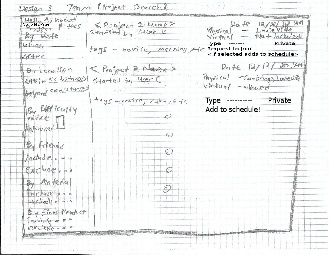
Project Search: Because this may be one of the most important first steps the user can take to get sewing his is the first thing logged in users see. From here they can find a project and add it to their schedule and filter projects by various criteria. All pages allow you to return to the main page. |
| Panel |
|---|
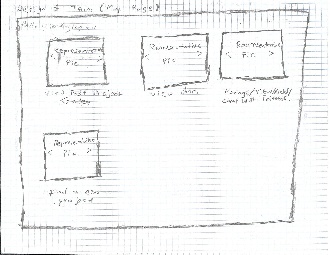
My Page: This page is your homepage. You can navigate to any other functions on this website. You can review past and future projects, you can view the notes you've accumulated so far, you can add friends and go back to the find projects page. |
...
| Panel |
|---|
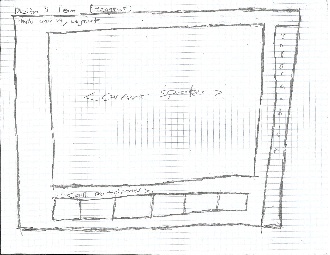
Hangout: Google Hangout-esque screen where you can hold a sewing circle and sew en masse. The current speaker gains central focus. |
| Panel |
|---|
Hangout Information: In this hangout you can click on the information tavb to get more information about a particular step including general information and common errors on that step. |

...
Learnability:
This website is very should be learnable because everything you need to remember is on your main page. All you have to do is remember to go there and read the options there. Long term memory is not required. Also, there are no hidden details. When you navigate to any page (for example the hangout page) you see everything you can access as a popout waiting to be clicked.
Efficiency:
There are two steps to finding a project. Logging in and searching. Similarly, to do any of the features you only need to go through the main page so there are no long chains. That being said it may be inefficient to always have to go through the main page and it may have been better if all pages were linked to each other, but that may cause a learnability issue. Perhaps it could be a useful feature for advanced users.
Safety:
To mitigate safety concerns we should back up all the user's data and give them intrusive confirmation boxes for when they want to do something permanently destructive (concerns are deleting a project, deleting notes, deleting images, etc.),.