What you'll need before starting:
- A CAD model of the object of interest. This tutorial assumes user is working in SolidWorks.
Before proceeding ask yourself: is a hand calculation not sufficient for this task?
Simplifying the Object of Interest
It's important to remember that CFD is a model of the real flow physics. We look to capture the physics such that we arrived at a "good answer" – one that is close to reality. What does this mean? Two things: First, we generally don't need to model the flow disruption of every bolt hole and scratch. Second, it's important to know how right your answer needs to be. Within 10% of reality? You may spend significant time running thousands of iterations, performing volume size and mesh sensitivity studies, and looking at quantities like Y+ to evaluate the boundary layer for the solution. For Rocket Team purposes, this level of accuracy has (to date) never been needed. In January 2026, Rocket Team demonstrated roll control on a subsonic rocket (see: Xanthus) with aero surfaces that ended up having a modelling error of 250 percent (discovered in post-processing telemetry data)! In other words, we overpredicted aero forces on the control surfaces by 2.5x!
How is this relevant to the CFD process? We will delete unnecessary features in our model to help keep the CFD solver stable and speed up solver convergence.
Steps:
Save CAD assembly As a new .SLDPRT file (you can save assemblies as parts!). Double click "Part" if it pops up on screen.

Combine all bodies using the "Combine" tool.
Defeature the model using the "Delete Face" and "Delete Body" tools. Your judgement is required to determine what's important.
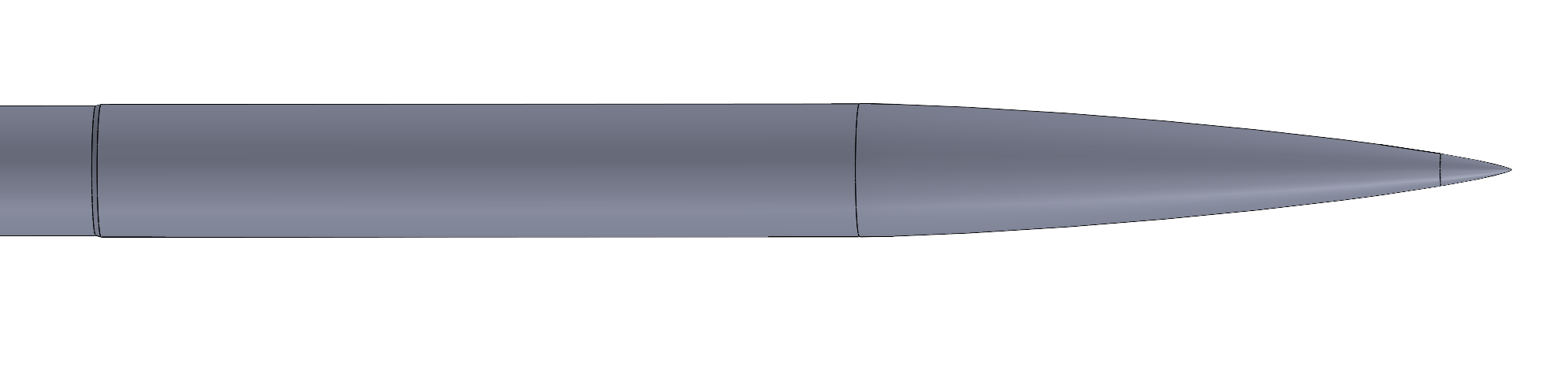
Example of defeaturing process: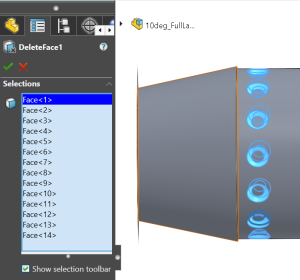
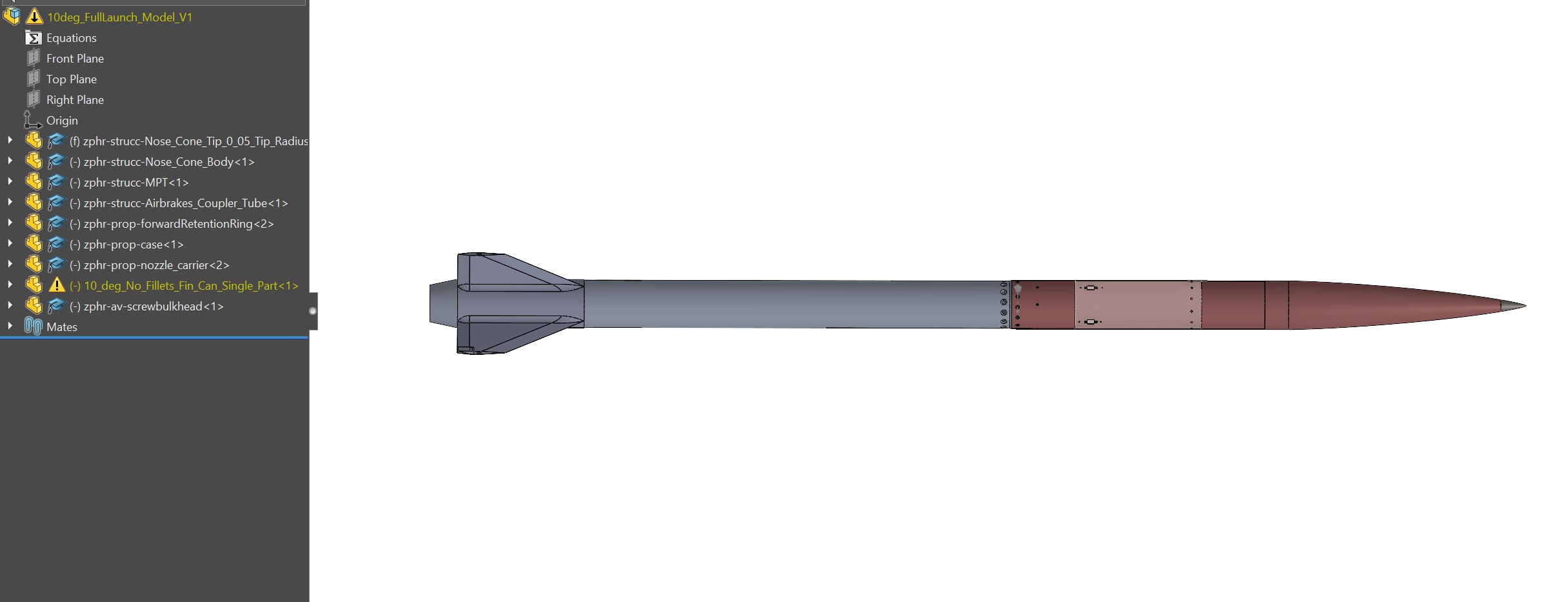
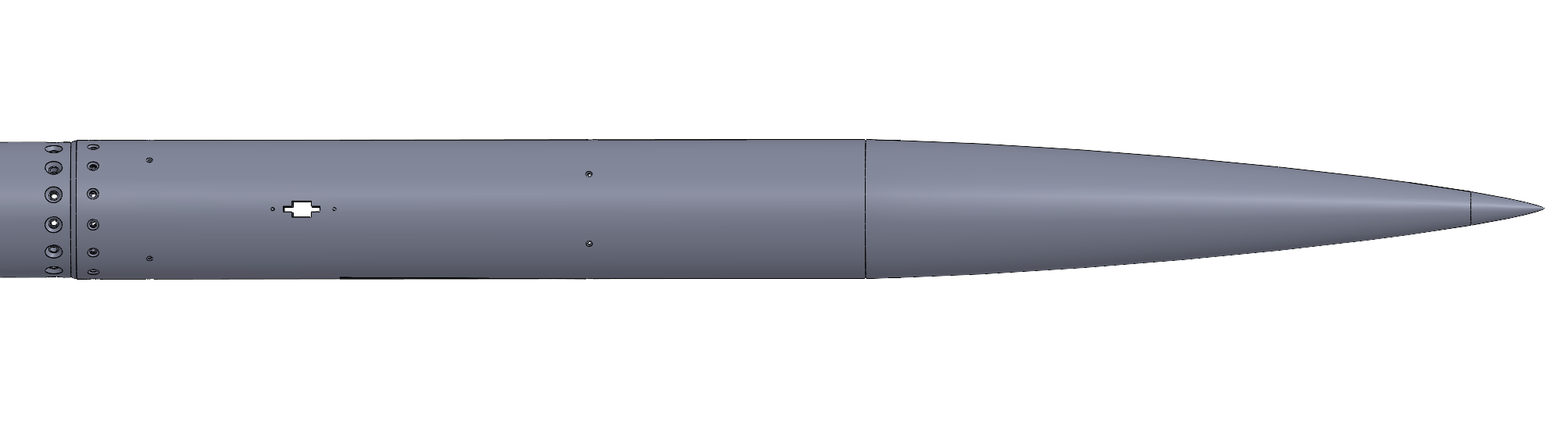
Before and After Defeaturing:
Making a Negative Volume (for ANSYS Fluent)
ANSYS Fluent requires a negative volume, or fluid volume, for the object of interest. This means we must subtract the object of interest from a volume of interest. We must decide what the adequate size of such a volume is. For a each dimension, the bounding box should be 10-20x the characteristic length of the object in that given dimension (this is the opinion of the author). For example, this 12-foot long, 6-inch diameter rocket should have a bounding box at least 120 feet long and behind the object, and 60 inches wide in the other two directions. A bigger bounding box is better but more computationally heavy. Ensure that the flow has a chance to develop ahead of the object (don't put the object at the front of the bounding box).
Steps:
Create a new part for the fluid volume, which is a rectangular prism of the desired box dimensions.
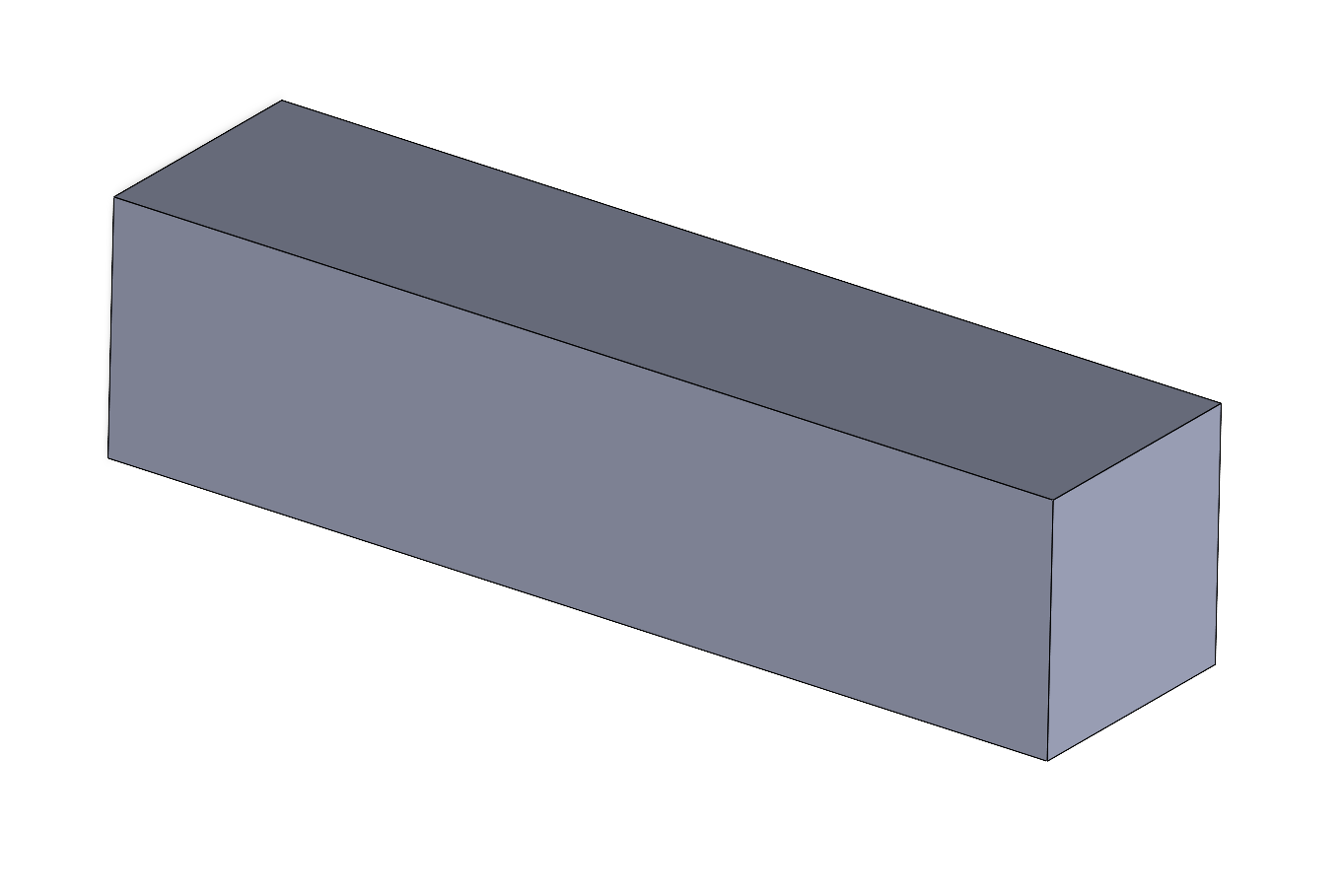
Once saved, make an assembly from this part and insert the defeatured object from the previous step.
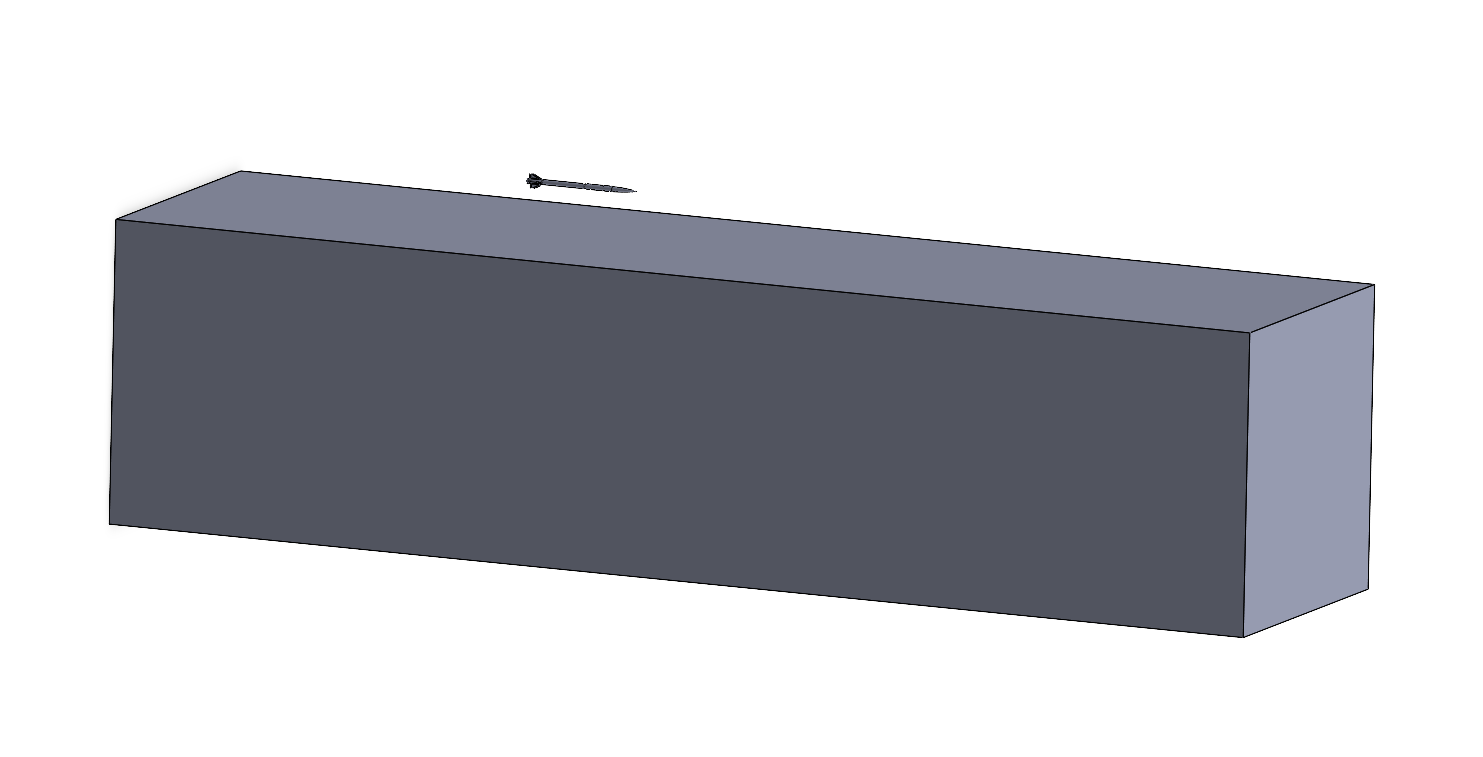
Use distance mates or symmetry mates with reference planes to orient the object inside the fluid volume.
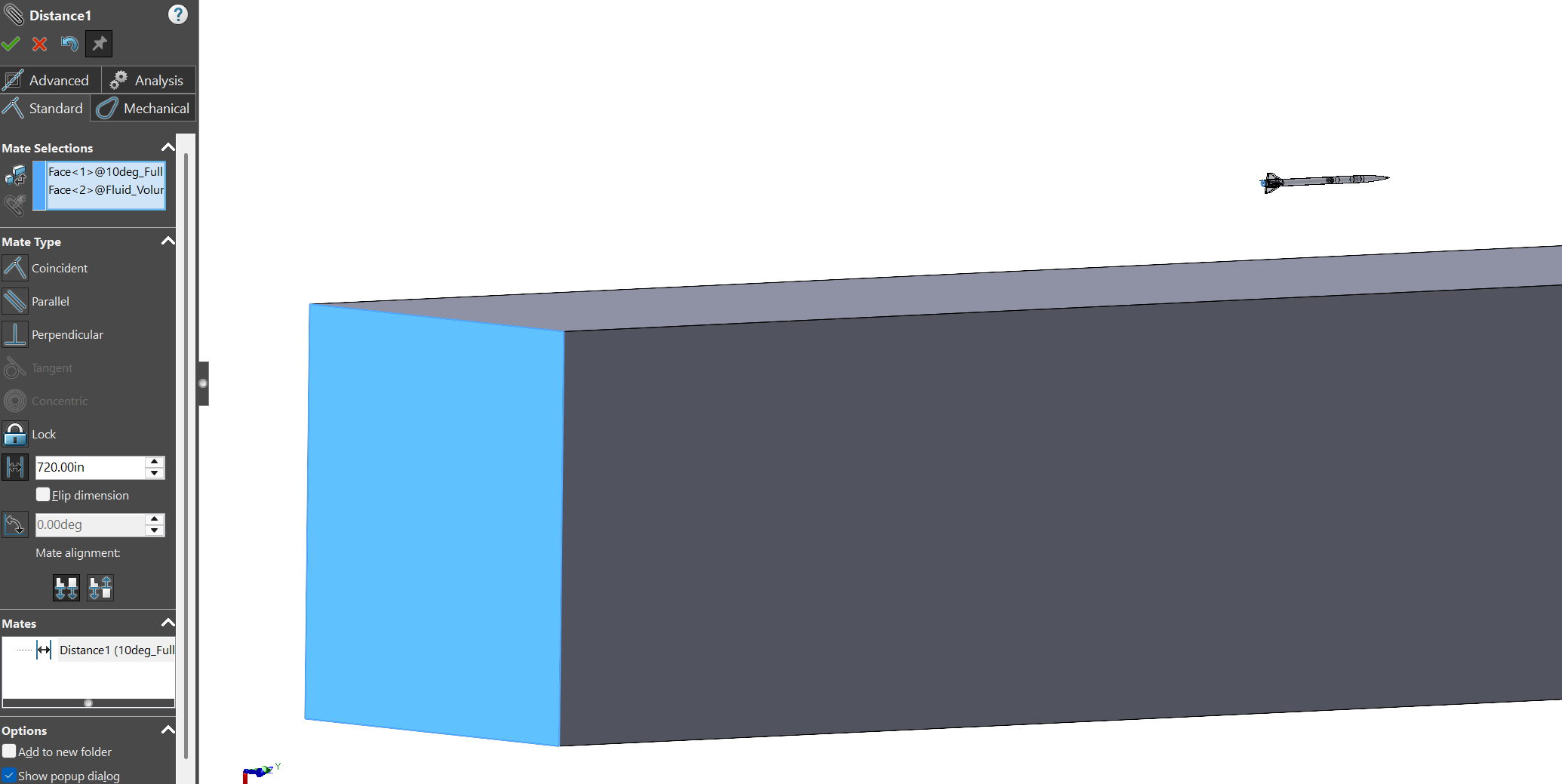
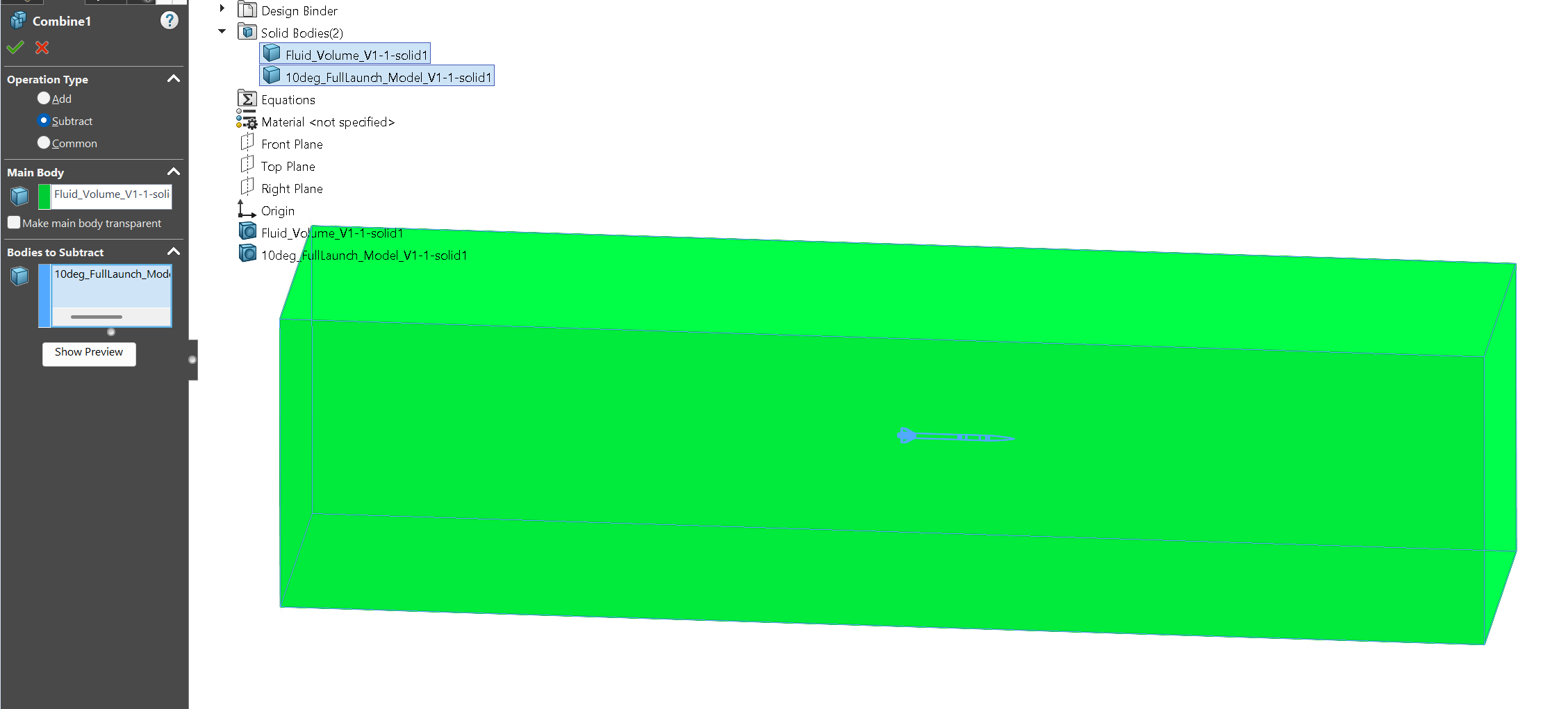
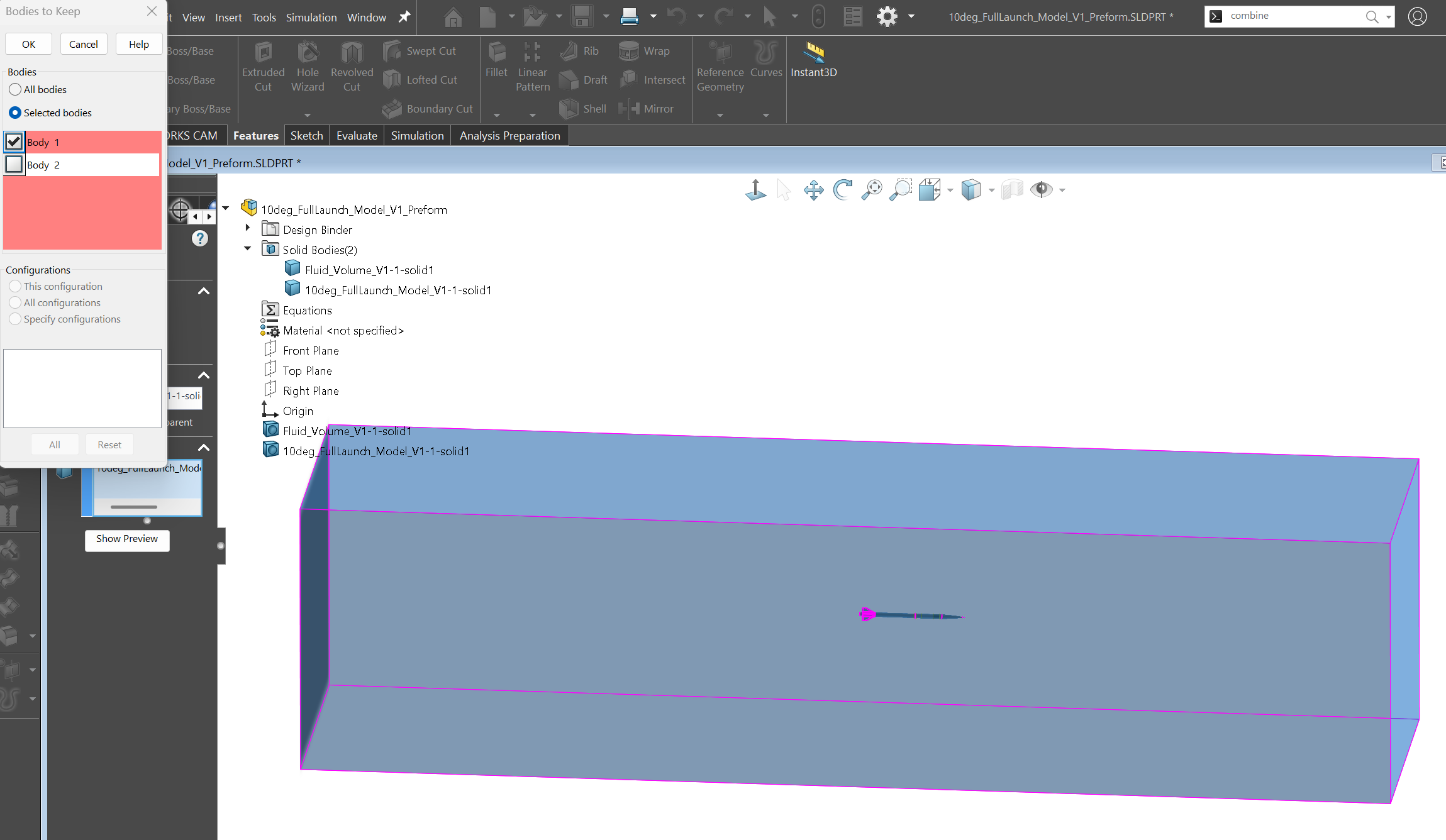
Save the assembly as a new part file. Use Combine → Subtract as shown in the first image below. If your object is hollow and closed, do not keep the volume associated with the inner enclosed region (see image 2 if applicable).
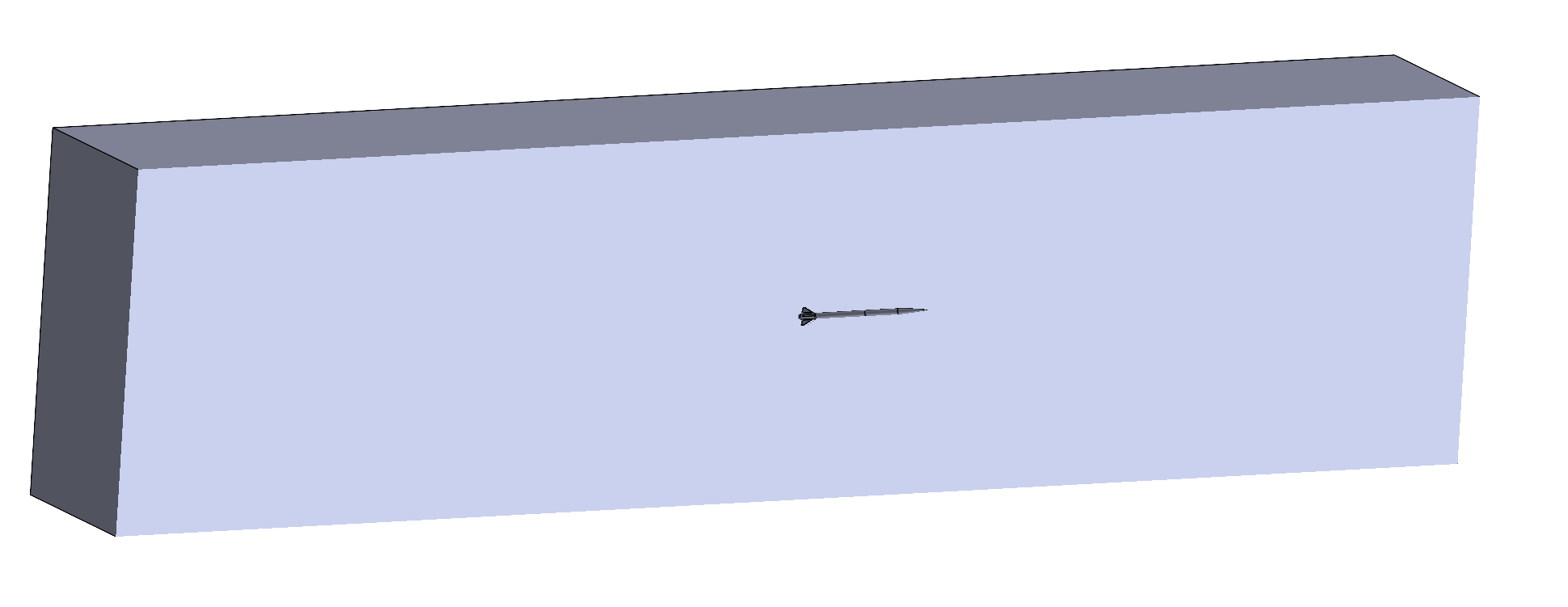
The cross-section should have your object of interest subtracted from the prism in a similar manner to the image below:
Save this part once again as a new .STEP file to be imported into ANSYS Fluent.
Setting up in ANSYS Fluent
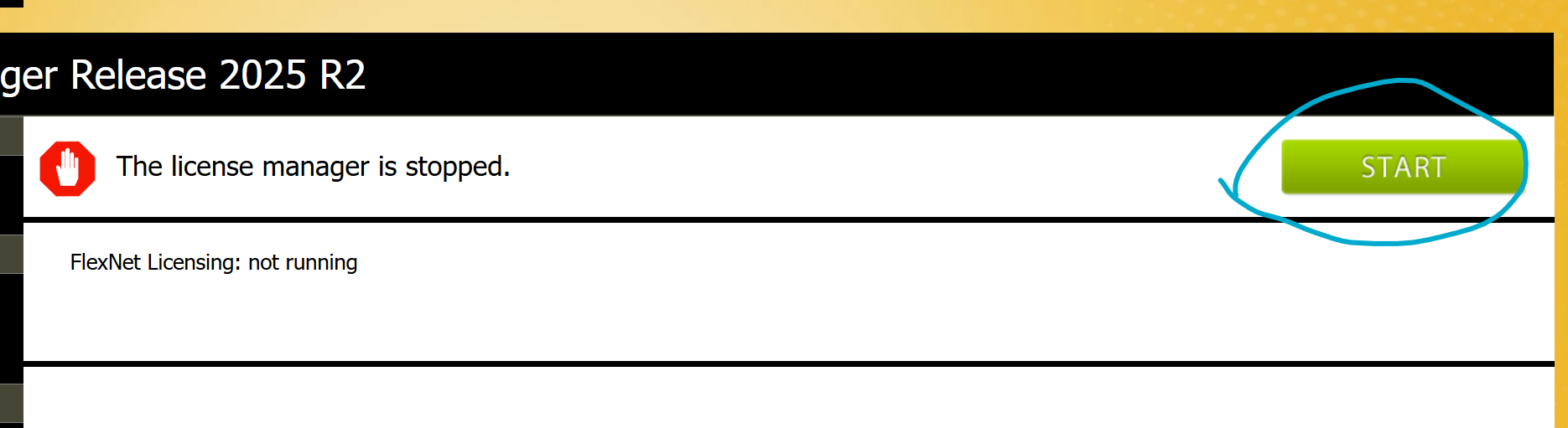
Open the ANSYS License Management Center App on your computer (Allow Changes on pop-up) and start the license manager:
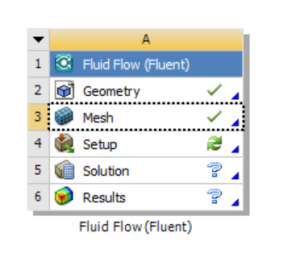
Once ANSYS is open, drag Fluent into the Project Schematic area.
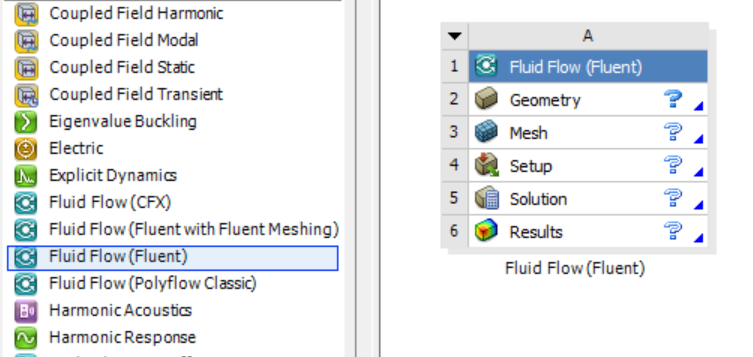
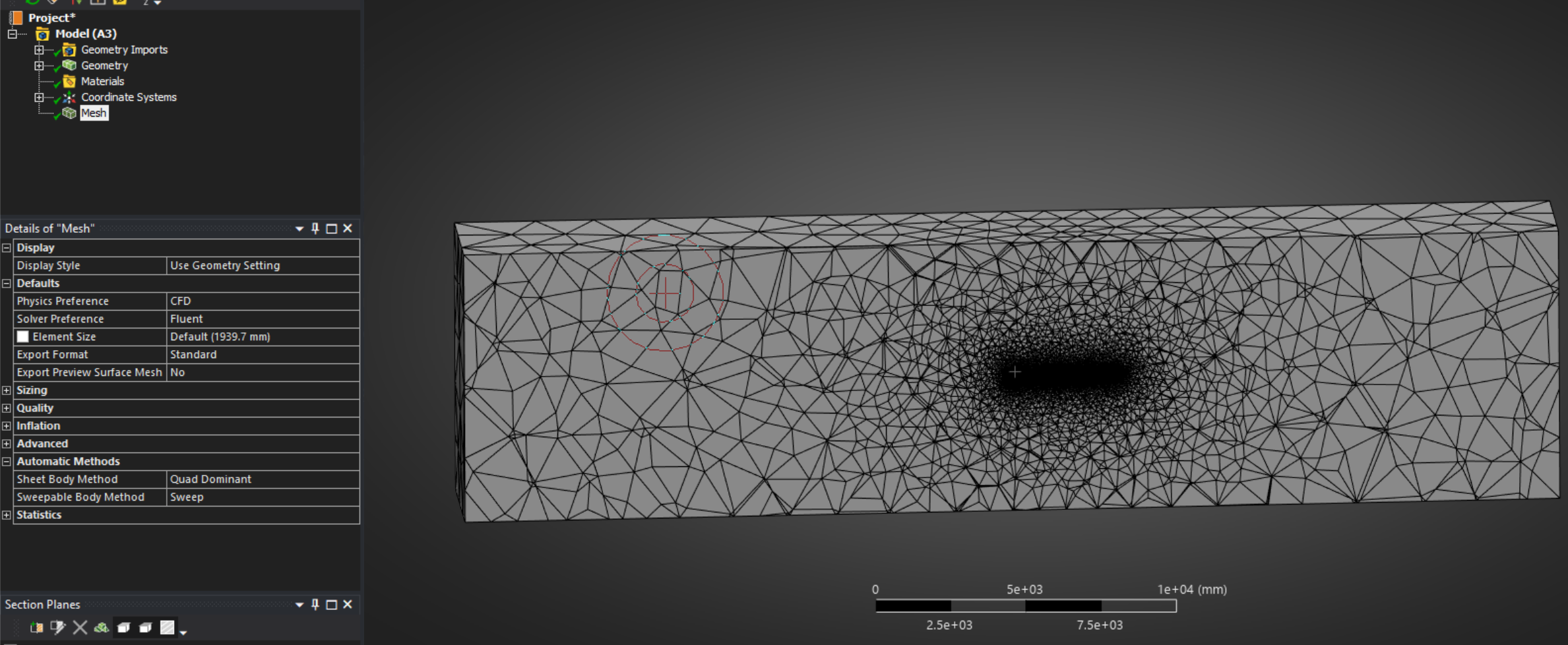
Right click geometry and import your file. Once complete a green check mark will populate next to Geometry. Next, double click Mesh to open the Mesh editor. You should see you geometry. Right click Mesh and click Generate Mesh. With any luck, you'll get something that looks like this (this is a cross section of the volume mesh):
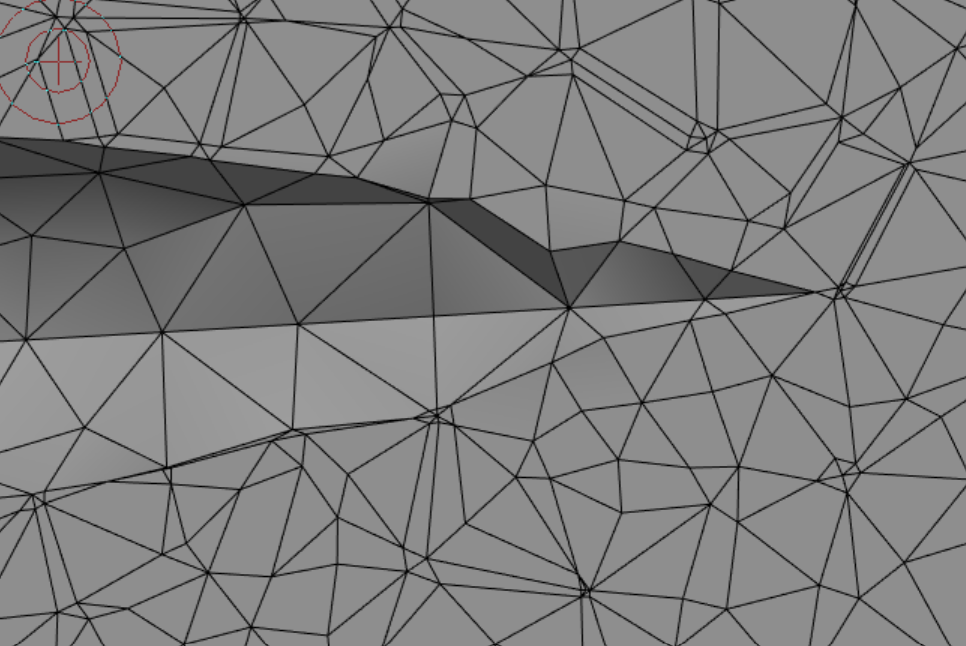
Some features will not be well-resolved with the default mesh settings. For instance, the Nose Cone Tip of this example model is quite jagged.
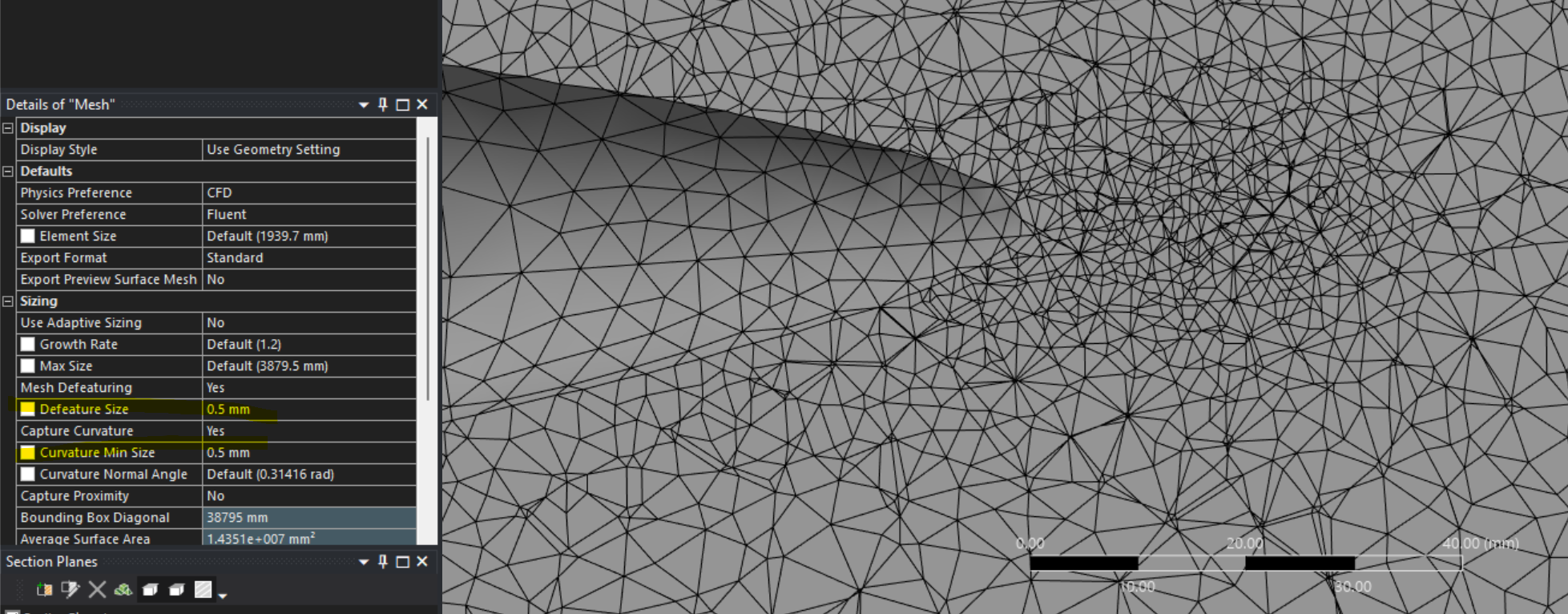
Click Mesh and open up the various subsections in settings to access different Mesh settings. Some useful global features are "Defeature Size" and "Curvature Min Size". For refining near specific features of interest, there are other tools such as "Refinement".
Once satisfied with the Mesh, minimize the Mesh Editor, right click Mesh, and click Update. You should see a green check mark in the Workbench area.
If you want to look at quantities on specific regions of the model, you'll need to set up Named Selections. To do this, go back into the Mesh Editor. Set the view to Wirerframe (see below).

To create a Named Selection, hide one side of the volume mesh wall by right clicking and selecting Hide Face. Now you can access internal faces. Hold the Control Key and select all internal faces in the group (which should all be highlighted in green), then right click anywhere, and click "Create Named Selection". If you accidentally hide a face, show all faces with Ctrl + F8, and similarly Ctrl + F9 to show all hidden bodies.
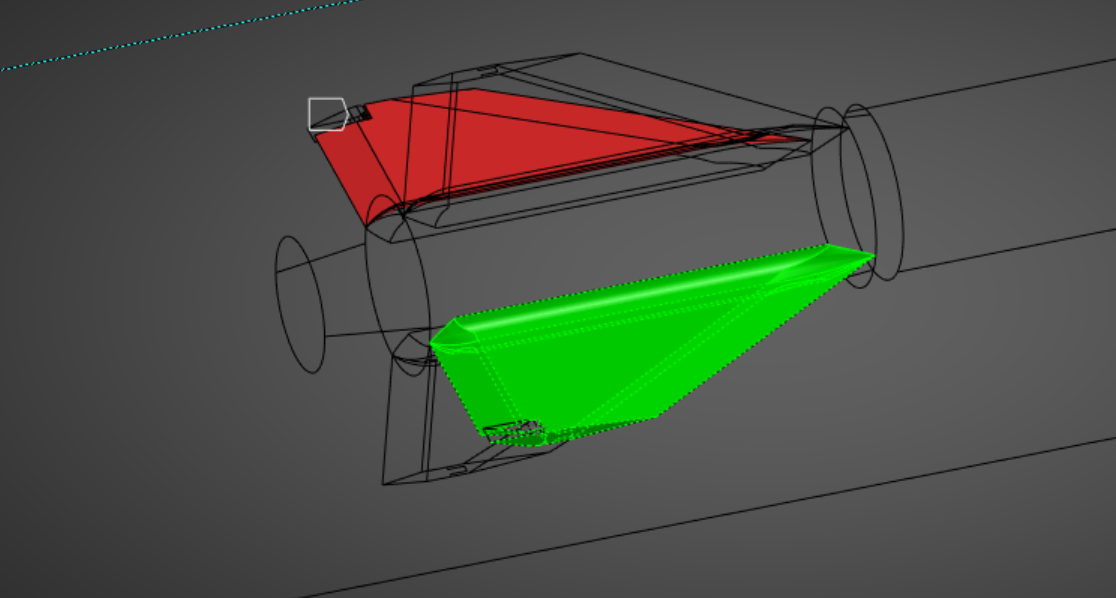
Add regions for Inlet, Outlet, and Side of Boundary regions along with the features of interest.
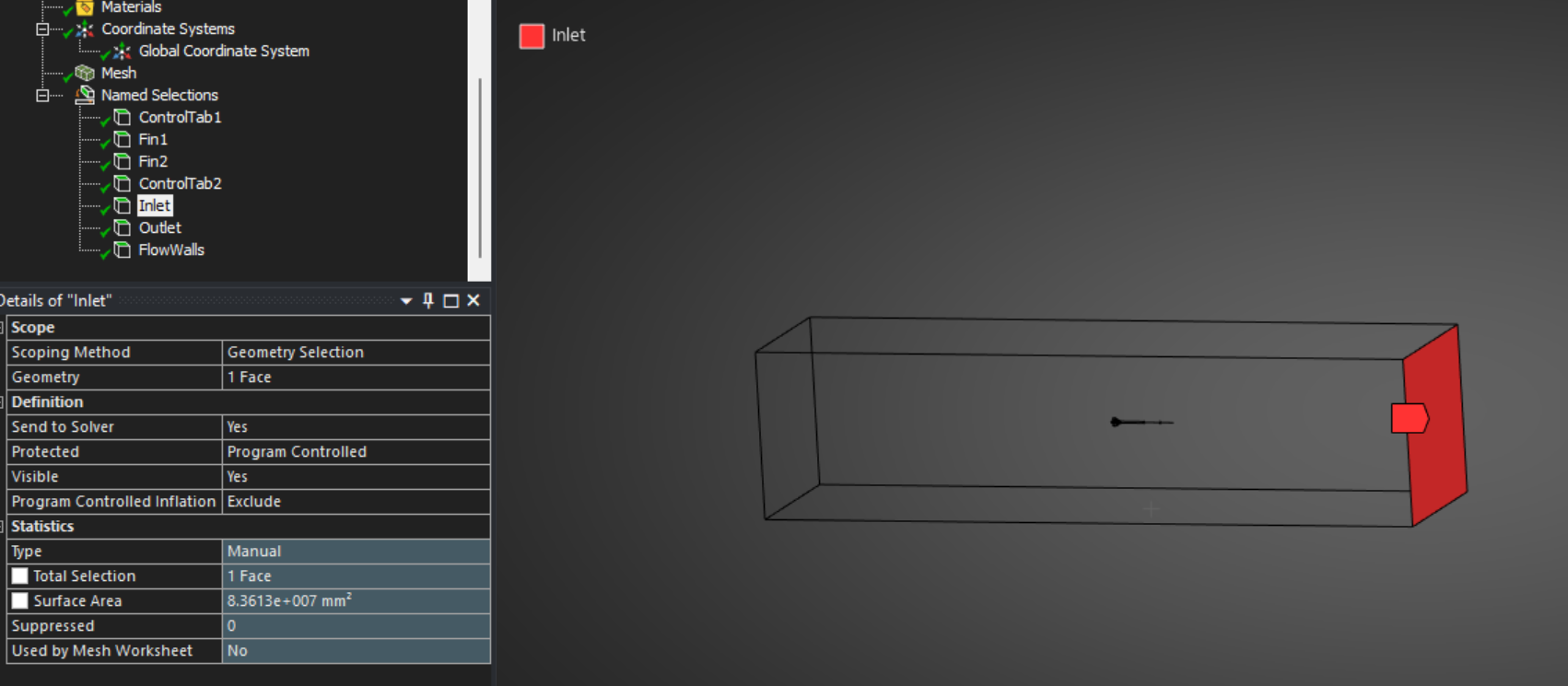
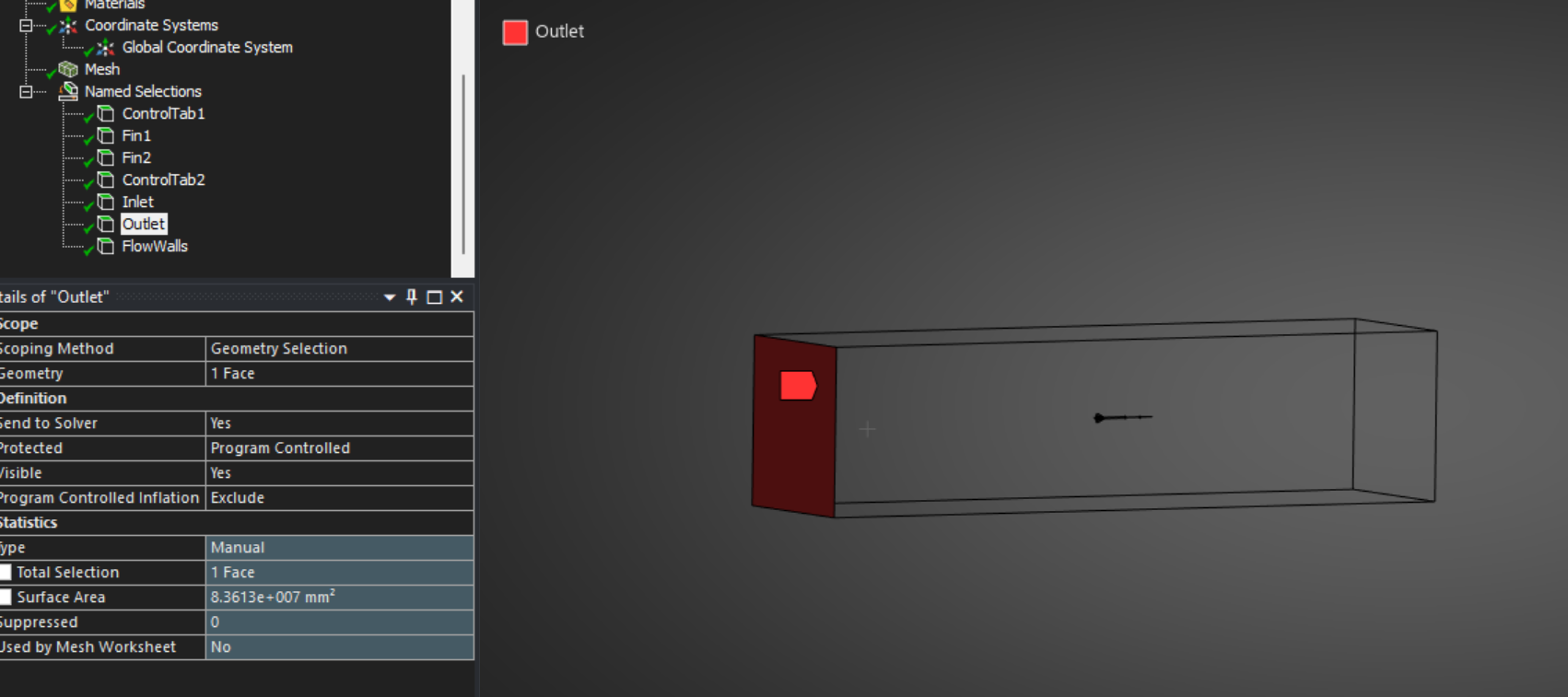
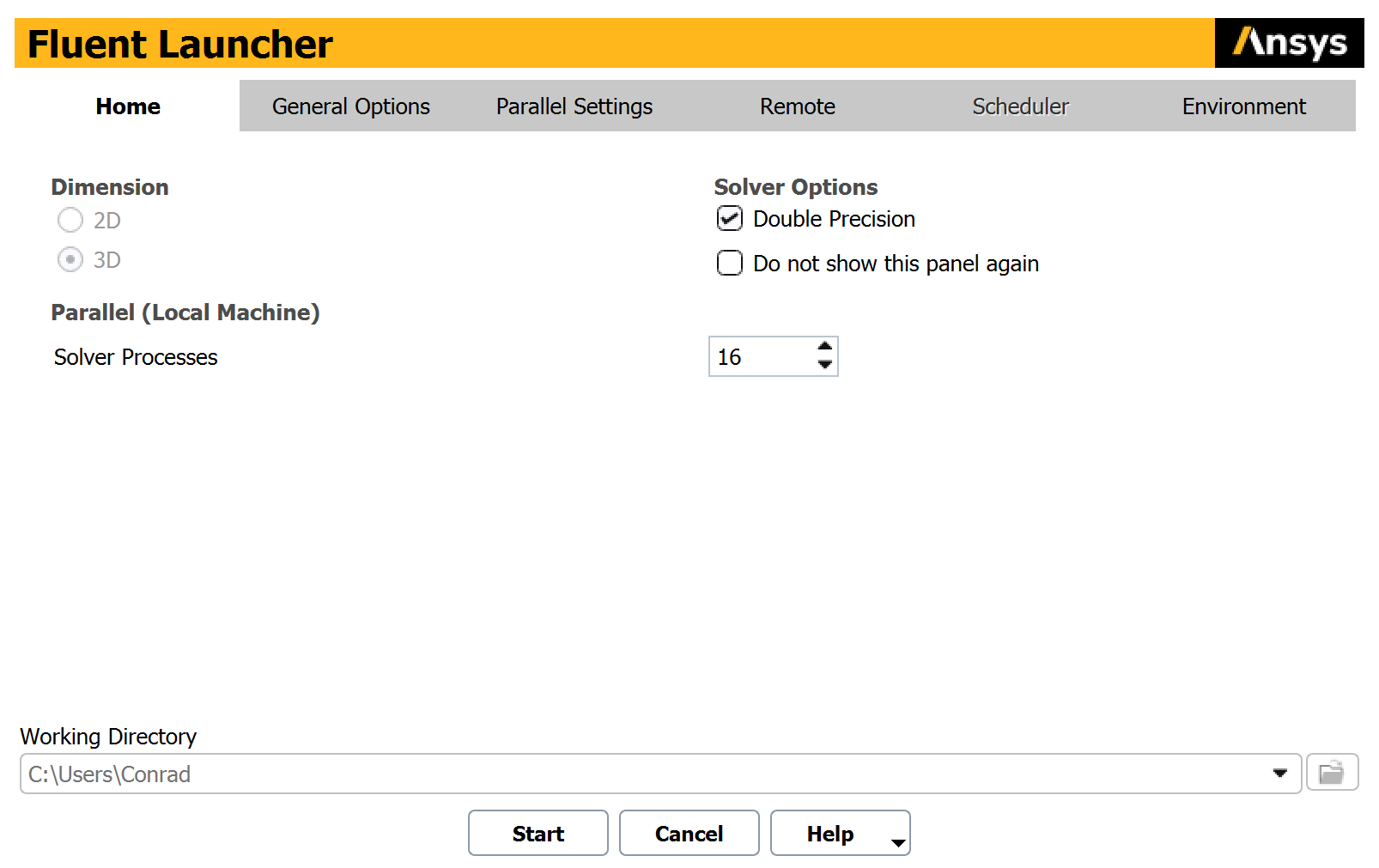
Right click Setup and click Edit, which will open Fluent. You'll be presented with the Fluent Launcher – allocate a good portion of your cores to the Solver to help speed up simulations (I've allocated 16 of my 24 here).
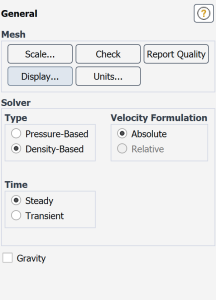
Under General, select Density-Based (for supersonic CFD; Pressure-based for subsonic).
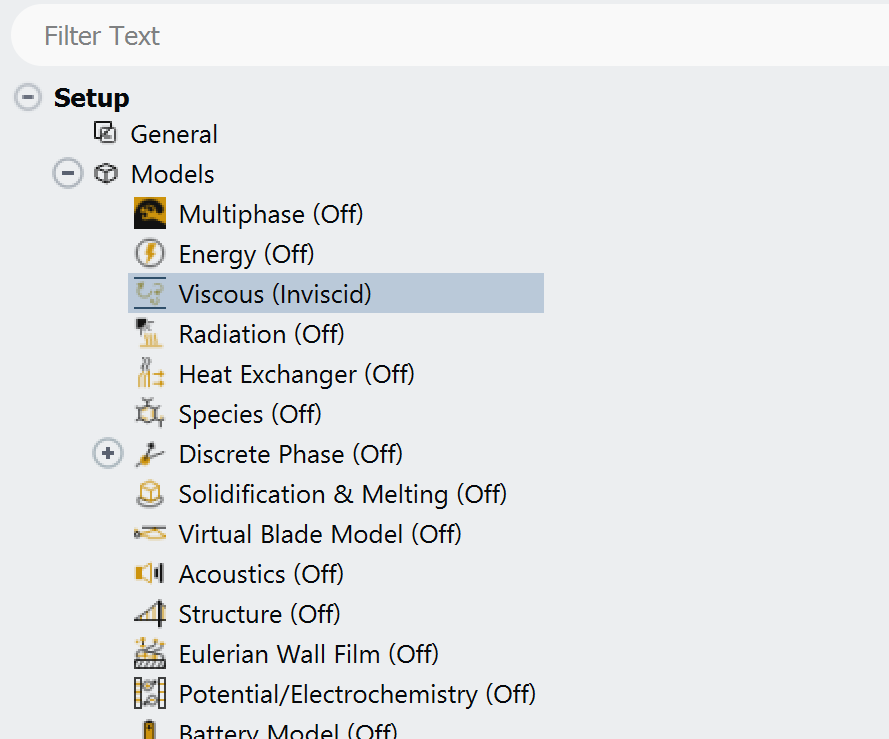
Under Models, select your preffered model for each part of the phsyics. For high-speed CFD (Reynolds No. > 10^6), Invsicid is a strong first option to get an estimate of forces and moments. When one runs Viscous CFD, meshing becomes exponentially more important (and complex) as the boundary layer must be resolved. Turn on Energy for supersonic flow.
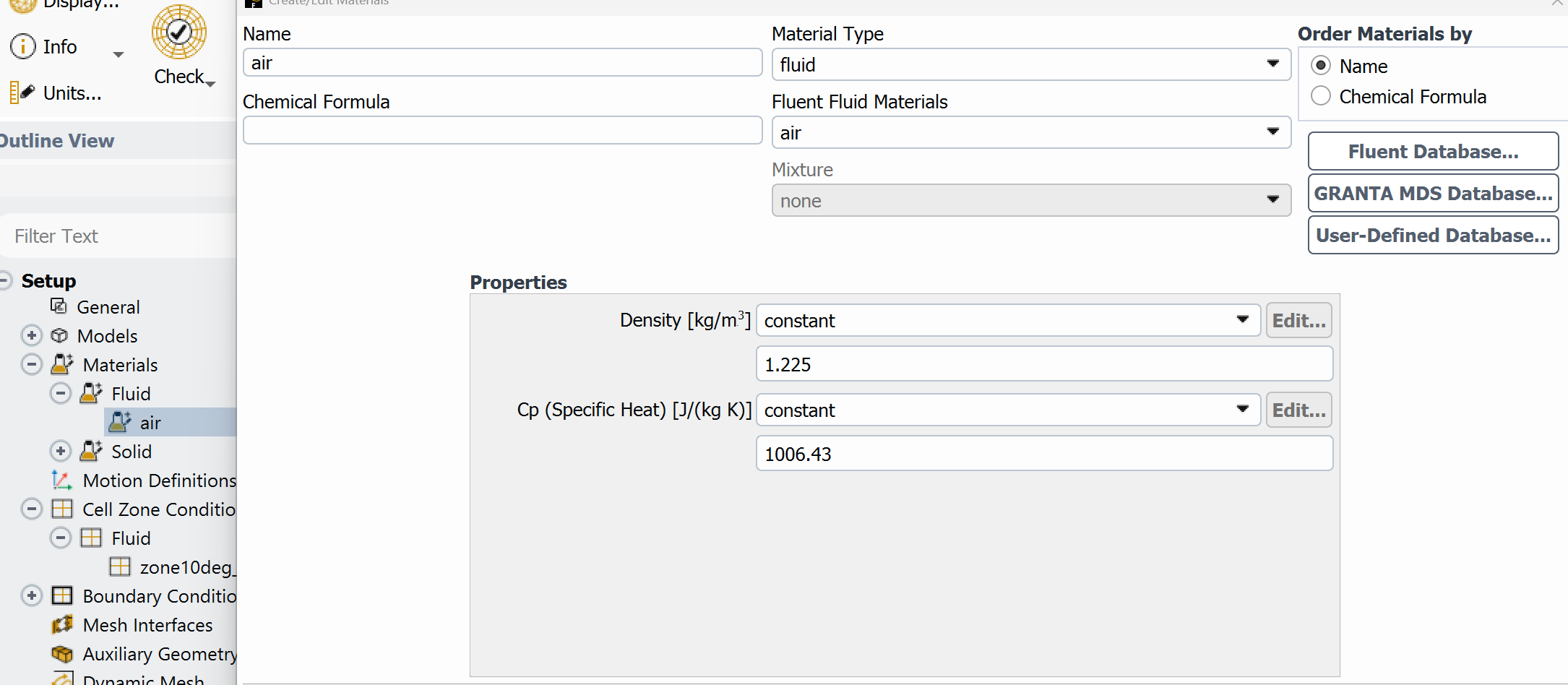
Ensure the fluid is Air, as an ideal gas, as shown below:
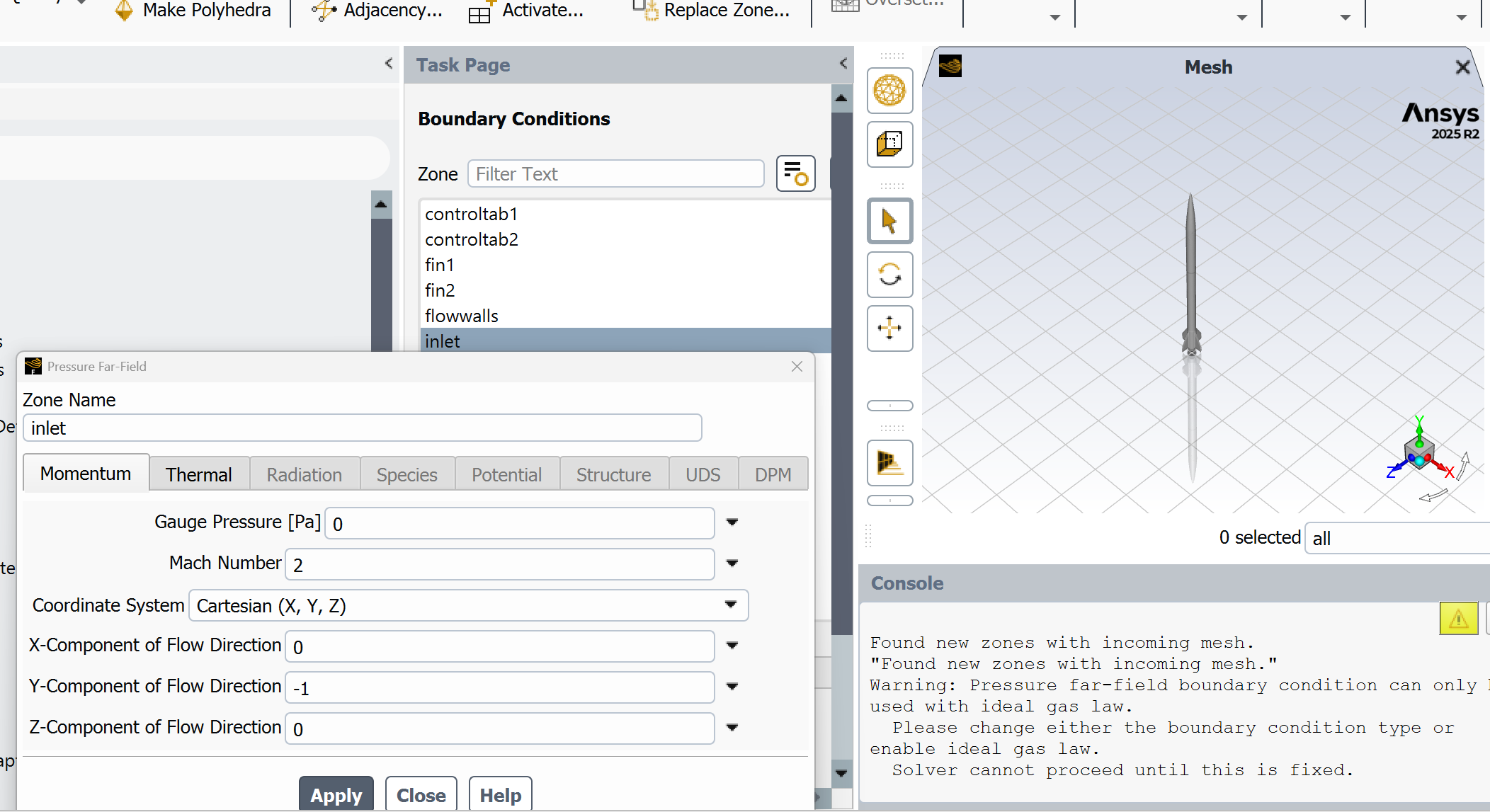
For supersonic CFD, double-click boundary conditons and set all fluid boundaries to pressure-far-field and the operating conditon (make sure they all match):
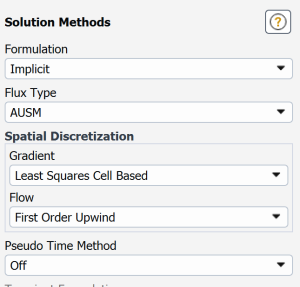
For the first iterations, use the following settings in Solution Methods:
Initialize the solution with hybrid initialization selected. Before running the solver, set up necessary residual monitors and probes of forces/moments/pressures/other quantities of interest.