ElderConnect
GR3 - Paper Prototyping
Prototype photos
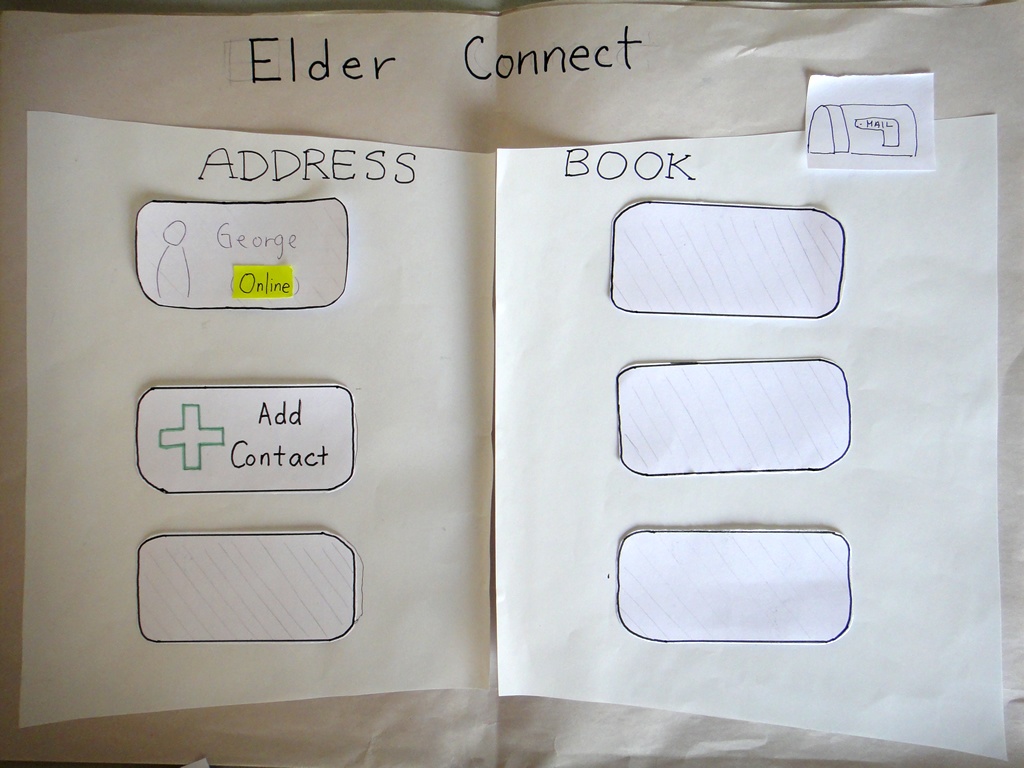
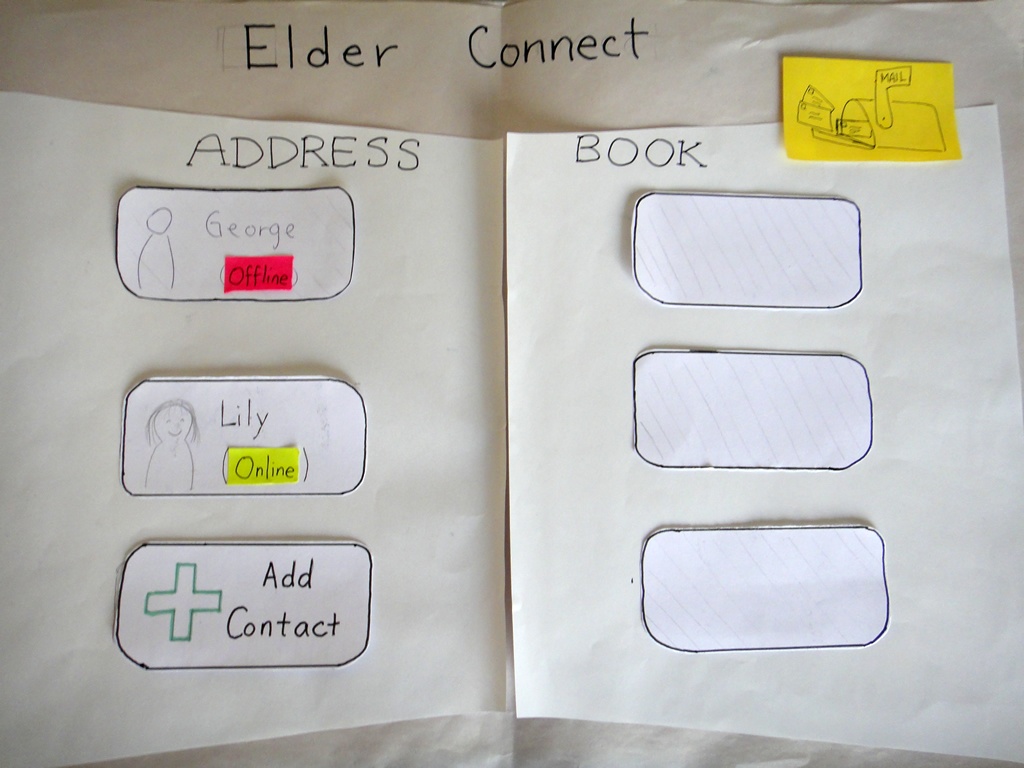
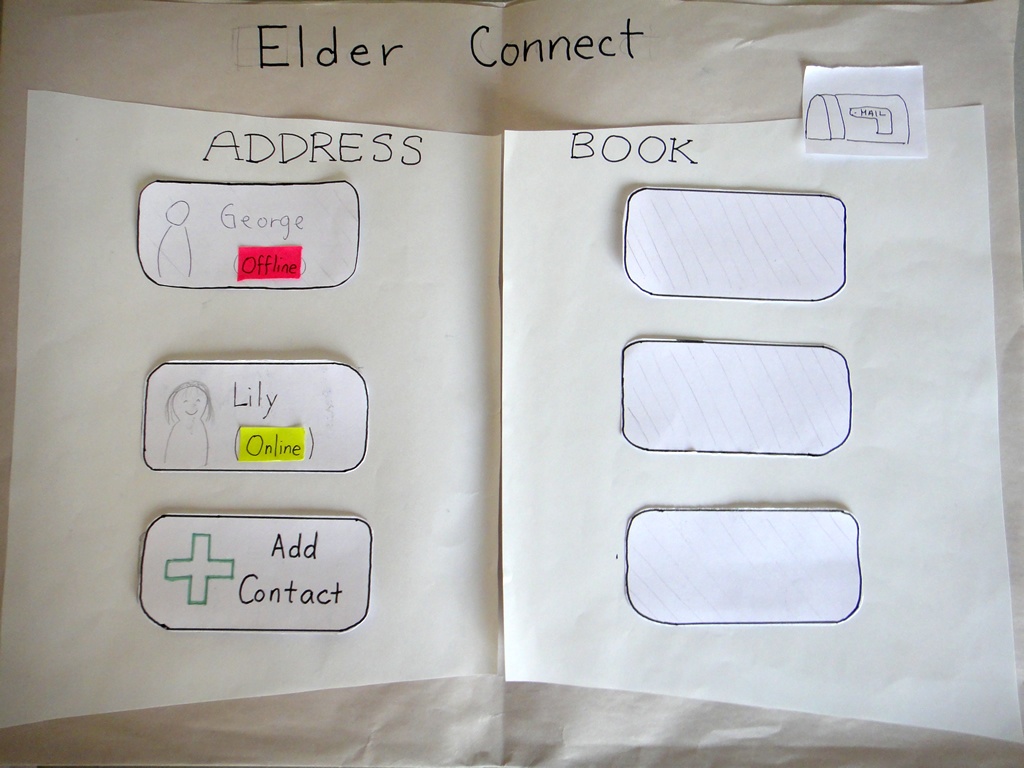
Unknown macro: {center} Main Screen |
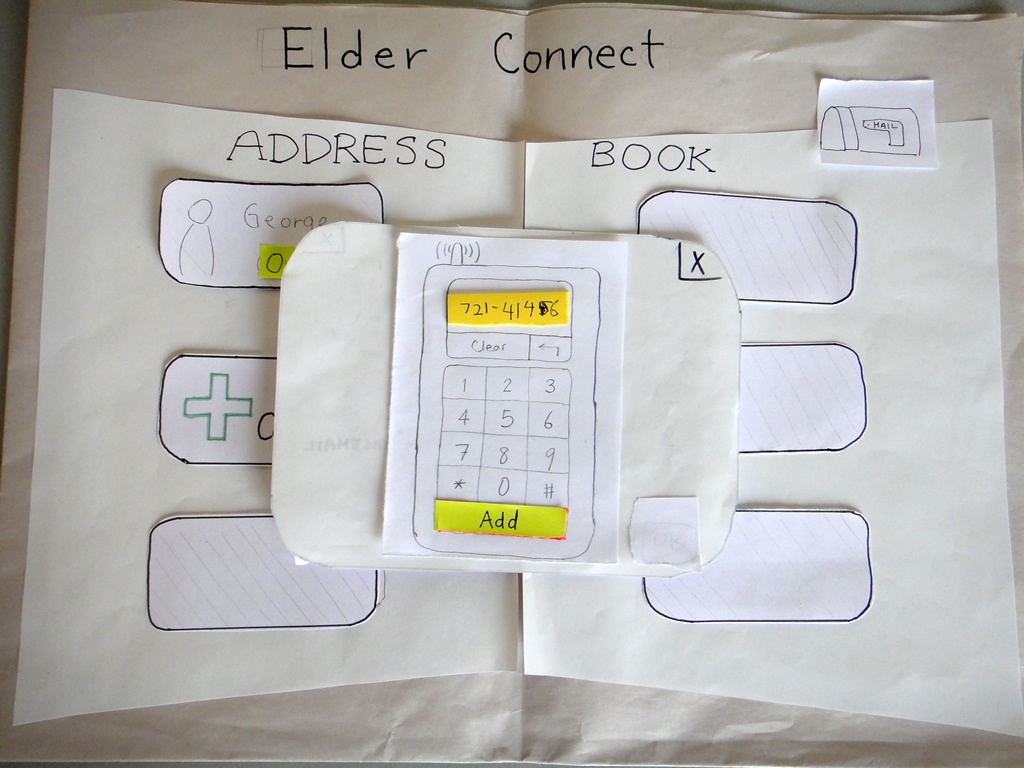
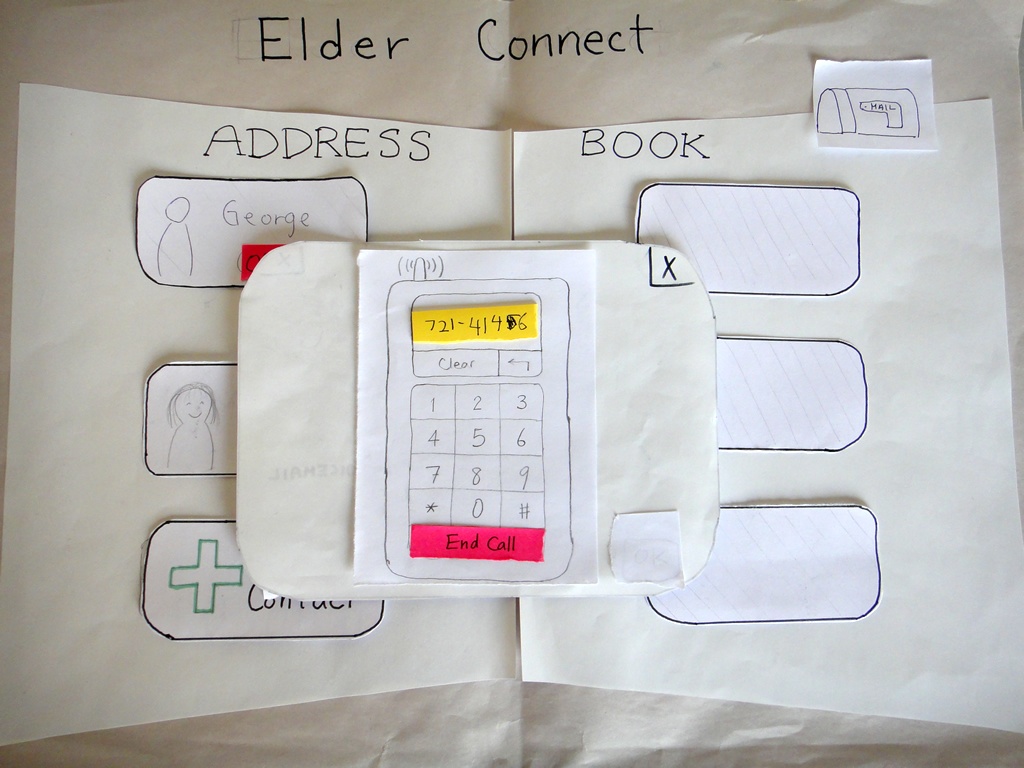
Unknown macro: {center} Adding a contact |
Unknown macro: {center}
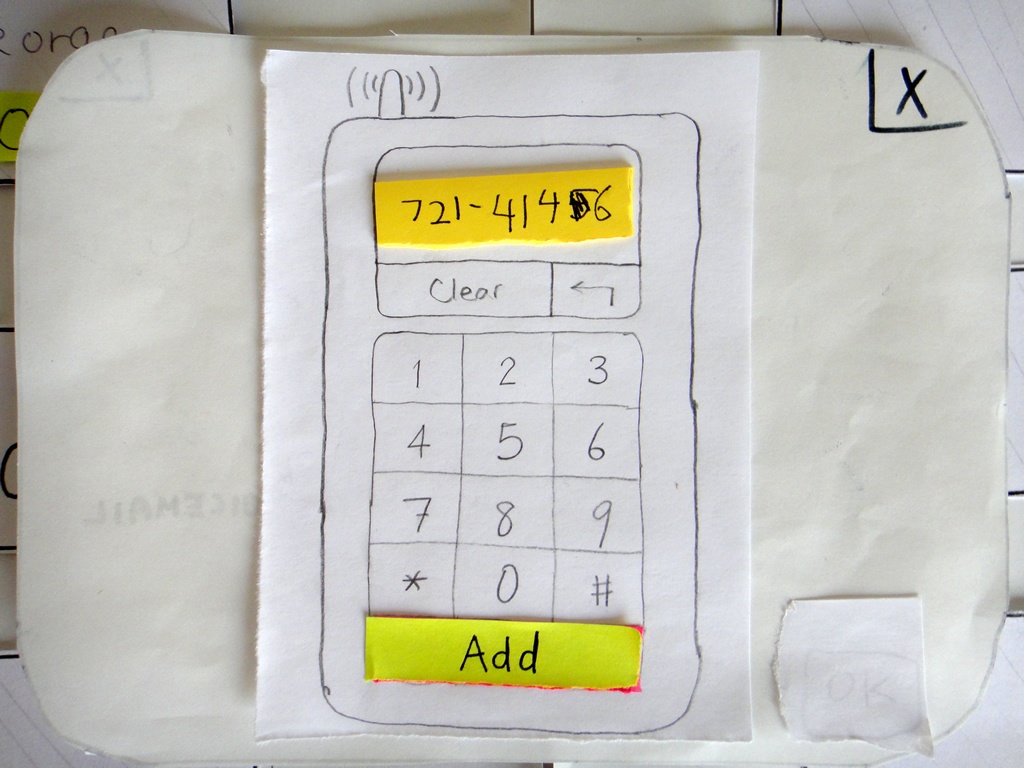
Adding a contact (closeup)
|
Unknown macro: {center}
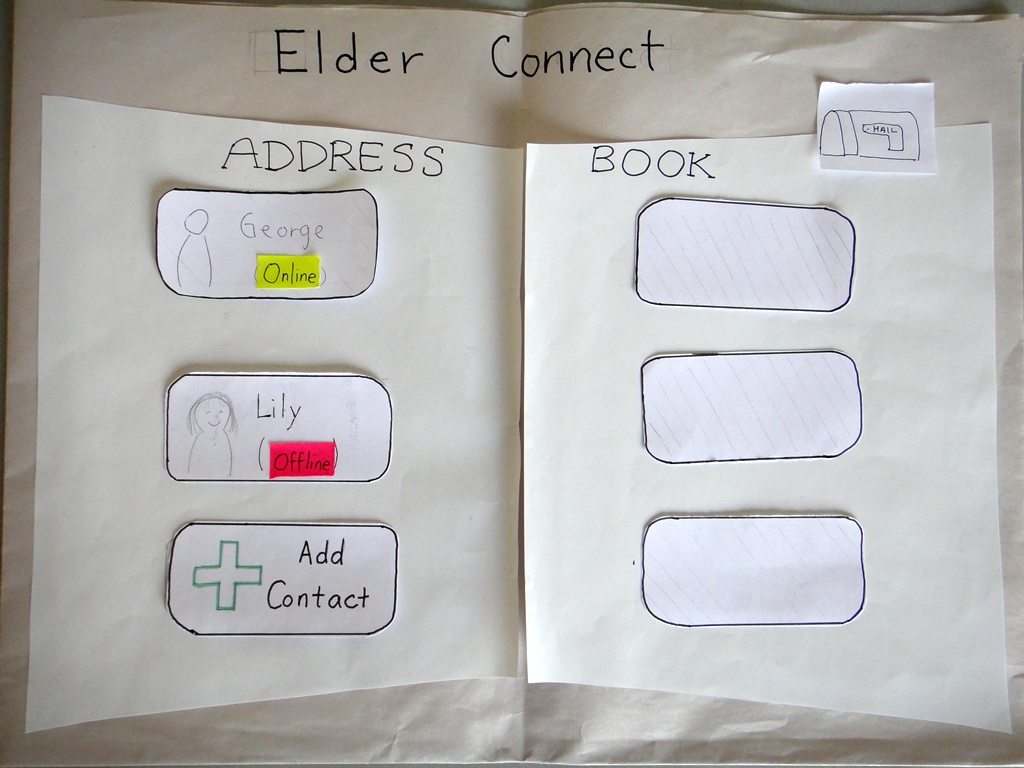
Contact added
|
Unknown macro: {center}
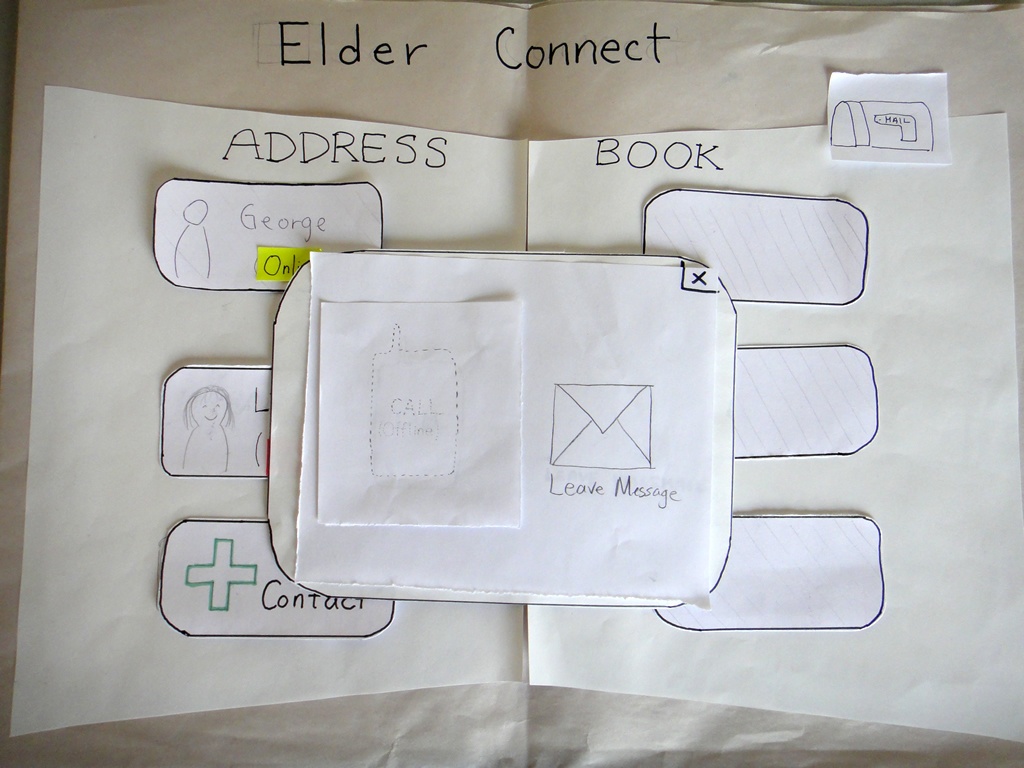
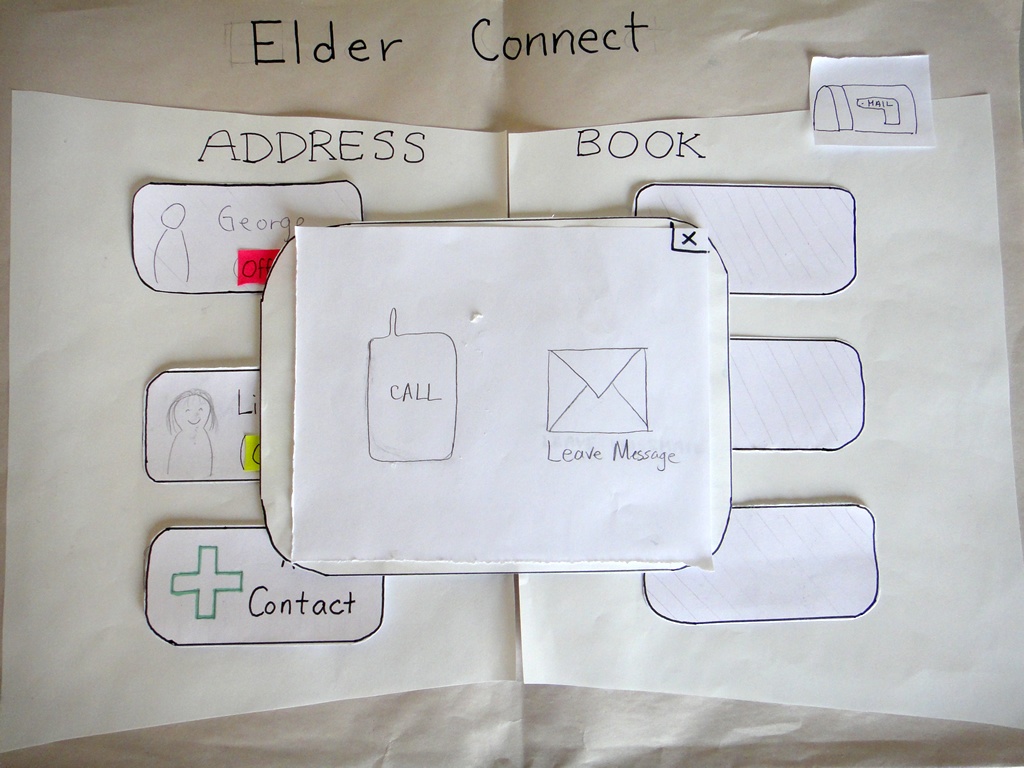
Choices after clicking an Offline contact
|
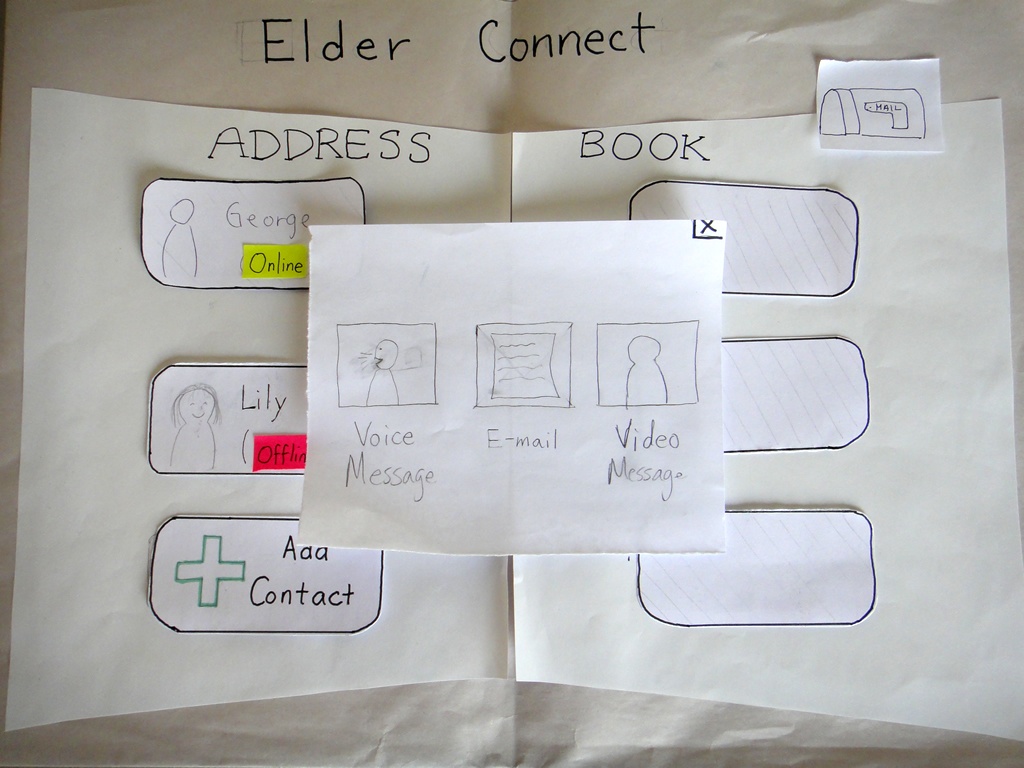
Unknown macro: {center}
Further choices after clicking Leave Message
|
Unknown macro: {center}
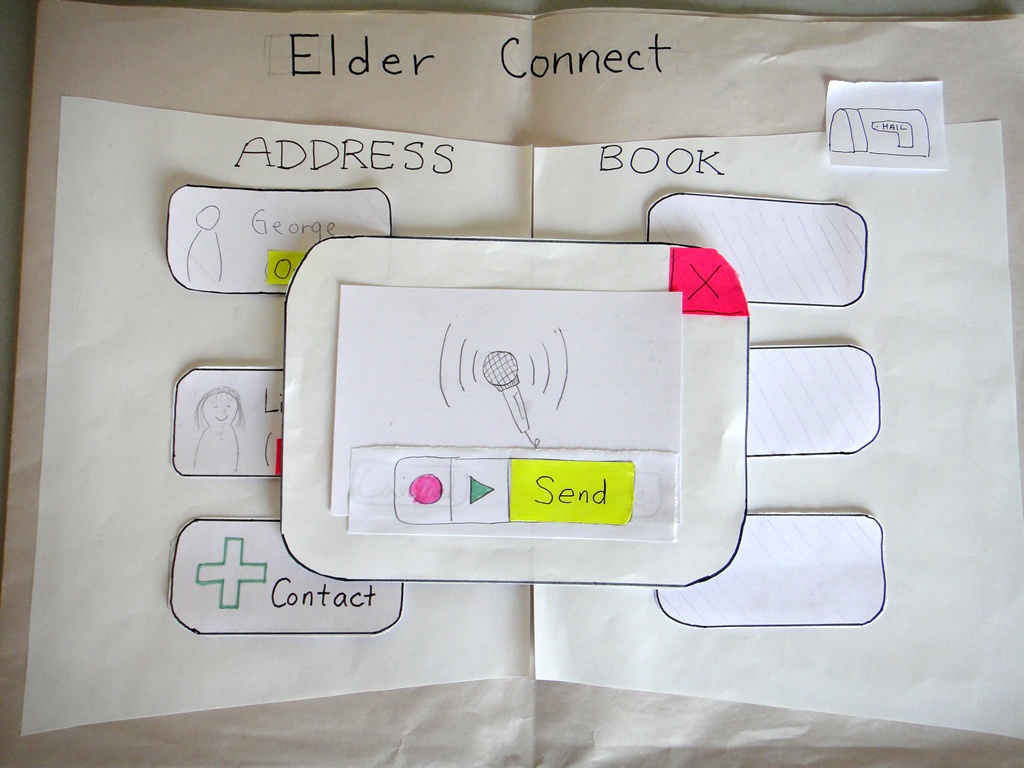
Leaving a Voice Message
|
Unknown macro: {center}
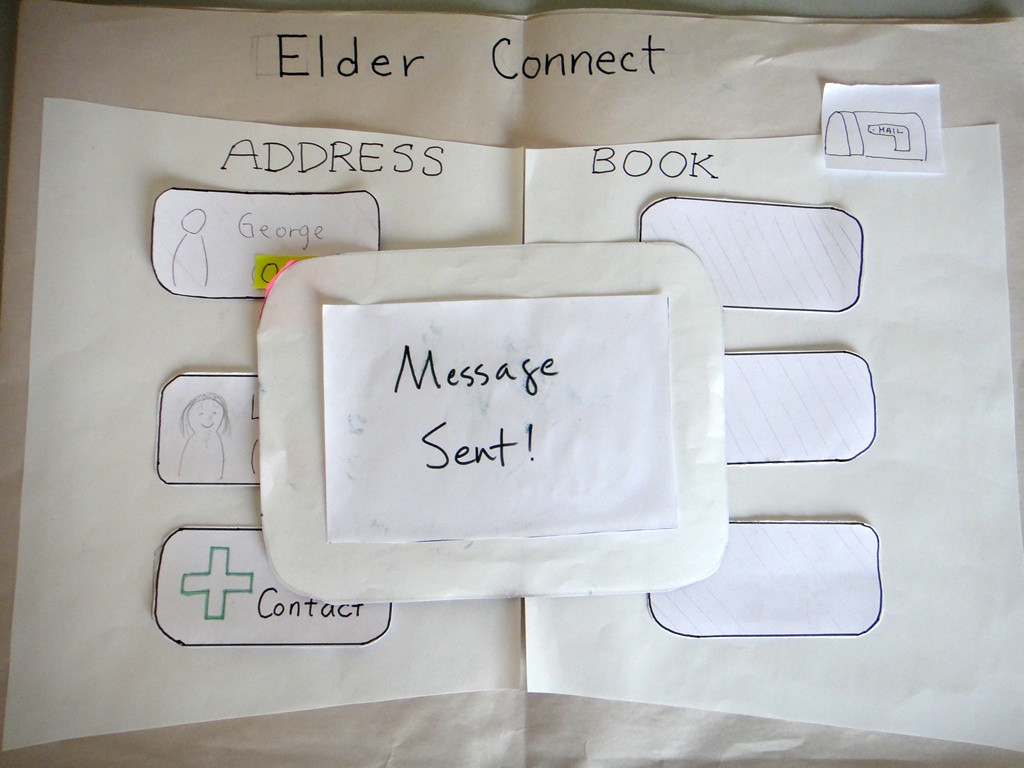
Message Sent!
|
Unknown macro: {center}
New Mail notification
|
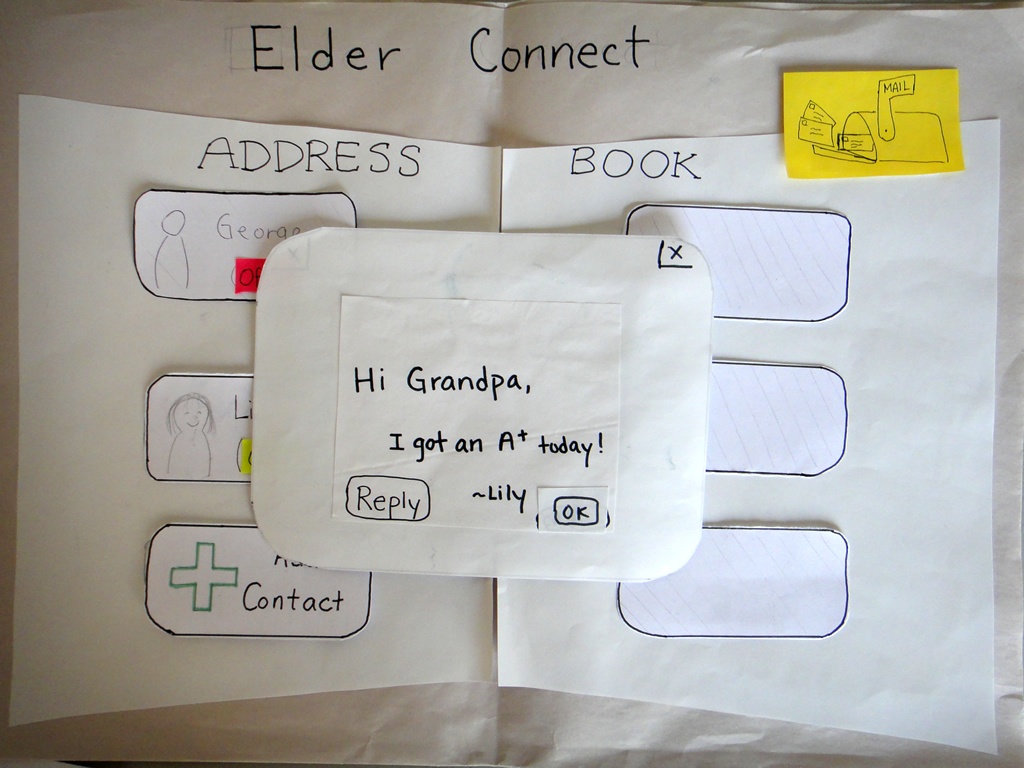
Unknown macro: {center}
Showing a received message
|
Unknown macro: {center}
Lily is online
|
Unknown macro: {center}
Options after clicking an Online person
|
Unknown macro: {center}
Calling Lily... Ring Ring~~
|
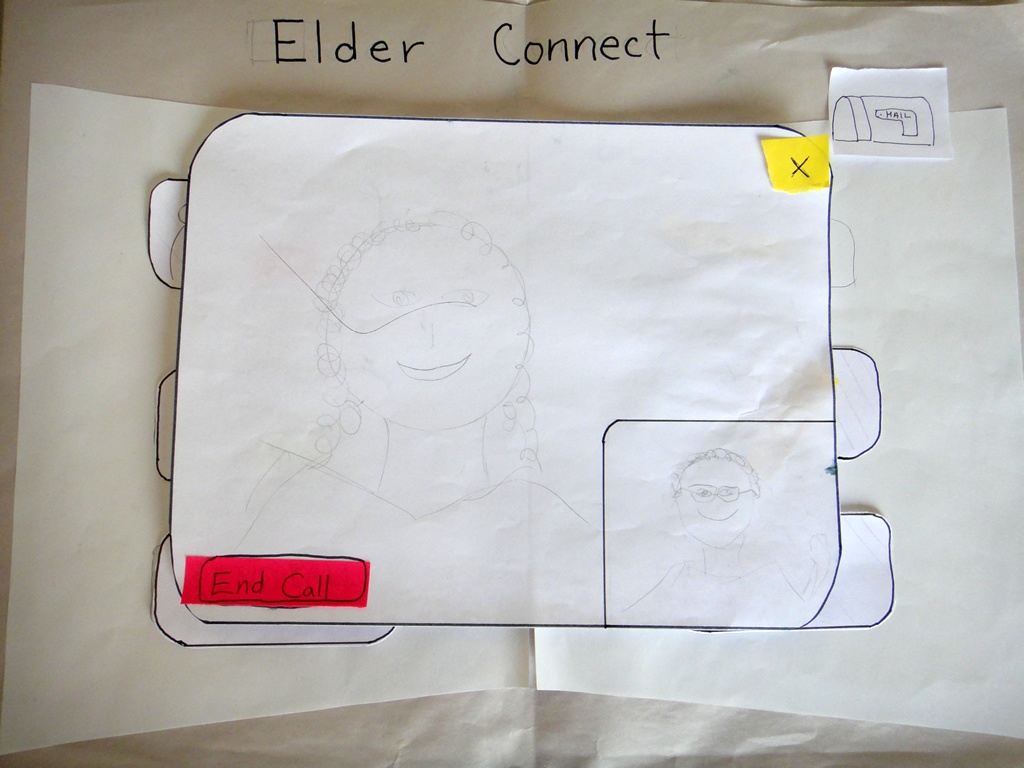
Unknown macro: {center}
Video chat!
|
|
Briefing
Here is the briefing we gave to users:
Purpose of application: To connect the elderly with their younger family members
- You are a grandparent named Harry.
- You are a native English speaker, but you have trouble typing and you are somewhat unfamiliar with using computers.
- Your granddaughter is Lily, a college student in California.
- This is your home computer, and it is the computer you use to go online. Assume webcam and microphone come with the computer, ready to use.
- Pretend Lily calls you one day and asks you to add her as a contact on ElderConnect so that you can stay in contact and chat sometimes.
Scenario Tasks.
Task 1: Lily calls you and asks you to add her as a contact.
Task 2: One day later, you want to send Lily a message.
Task 3: A few days later, you go on ElderConnect again. You want to call Lily.
Observations from Wednesday's Testing (Round 1)
Total number of users tested: 5 (Address Book: 3, Phone Metaphor: 1, Action wheel: 1)
User testing descriptions
Address Book Metaphor Prototype
- Phone
- During the add-contact task, users were uncomfortable with the fact that the phone call actually went through to the granddaughter. Some expressed that “Add contact” should feel different from a normal phone call, and should allow them to hit an “OK”-like button to confirm before the request is sent.
- Lacks a “send” button. old dial-tone phones with no numerical feedback do automatically start dialing, but since our display looks like a cell phone that displays numbers, it should be consistent with cell phones having a “Send” button.
- No way to delete one digit at a time. This is poor safety for the elderly who may make errors while entering digits. Having no digit-backspace also threatens efficiency; the user would need to completely start over if he/she makes any mistake.
- Lacks an “end call” button. This was simply an oversight on our part.
- Not a real cell-phone number (only 6-digits long).
- User not sure if * and # keys are necessary since they are never used when dialing a phone number.
- Mail
- Yellow mail icon misconstrued to be a “compose mail” button.
- “You’ve got mail” icon being inside the address book seemed to be inconsistent with the address book metaphor; normal address books don’t have mail-receiving functionality inside. User suggested to put the inbox in a corner of the browser instead rather than associating each mail icon with a particular contact.
- Can’t hear message playback or see previously sent/received messages again.
- Options/Widgets
- No way for grandparent to write an email, yet receives emails from grandchild. Makes user feel somewhat mistreated.
- Doesn’t make sense for “call” and “send voicemail” to be two diverging options. Normally the caller would call and, if the recipient doesn’t answer, the caller would leave a voicemail.
- Call/Send Voicemail screen: user wondered why both options were shown even though the contact was not online.
- Need video vs. audio option
- No way to send a video message.
- User said that it may feel more like an address book if the user can fill in the details right on the book instead of on a popup. So maybe clicking on Add Contact will turn that entry into some text fields.
Phone Metaphor Prototype
- Phone:
- There is no end call button.
- No way to confirm that the phone number is correct because it automatically dials.
- Mail:
- User did not associate “leave a message” with “send a voicemail.” Strong association between “leave a message” and textual message.
- No way to review a previously received message again.
- “Call” and “Message” are currently either-or options. Would like the option to both call or send message even when the recipient is online.
- Immediate start of message recording was a bit startling.
Voice Search / Action Wheel
- Circular action wheel:
- Circular selection momentarily confused user because it does not look like normal button options. However, user understood that they were probably buttons after thinking for a brief moment.
- User did not know what what voicemail icon stood for.
- User thought the X over the phone meant “end call” instead of “calling is not an option.”
- No functionality to delete a contact.
Feedback summary
Inconsistency with Expectations:
- Having a phone actually dial the recipient during the “add contact” task was disorienting to users.
- The reason for having “call” vs. “send voicemail” options is not intuitive. Used to leaving voicemail as a failed call attempt, rather than an upfront option.
- Many users were so caught up in recording their voice messages that they forgot to click “Done” until they realized they needed to do something.
- Users wanted the option to send a text message, not only voice messages.
- Letter icon was ambiguous to users (compose mail vs. receive mail).
- (Phone metaphor prototype) No user attempted to punch numbers into the phone to dial the recipient.
Consistency with Expectations:
- All users correctly clicked on the phone digits to dial the phone - understood that the interface was mimicking a phone.
- All users clicked on the recipient to initiate communication with the recipient. Some noted that they did so because it was the only thing to click on.
- Users used the X’s in the upper right corner of layovers to exit out of the layover or to undo the selection. This was as we had hoped/expected.
- Users clicked the “Cancel” and “End call” buttons correctly.
- When mailbox icon was in upper right corner of the browser, all users knew to click there for mail.
- Users noticed the address book metaphor.
Positive and Meta-feedback:
- Users remarked liking the simplicity of the interface (aside from the call vs. messaging options confusion)
- Users expressed some degree of amusement/excitement over recording a voice message and talking over webcam. The excitement may be partly a result of feeling nervous, but users seemed on the whole happy and played along with the voice-recording/webcam components of the study.
- One user (playing the Grandparent) remarked over webcam: “It’s nice to see your face!” This remark suggests that college-aged students assume and are aware of the notion that their grandparents would like to see them more often.
Changes for Round 2
Flow:
- To address all the communication-option confusion, change to the following flow hierarchy.
- If online: see call vs. send message →
- If click into messages: see 3 options (voice message, email, video message)
- If offline: goes directly to the 3 message options (voice message, email, video message)
- If online: see call vs. send message →
Phone changes:
- Make “Add” button so that user has control over when phone starts connecting during Add Contact task.
- Show “End call” button once user and recipient have connected live, during Call task.
- Add back-arrow icon to allow deletion of 1 digit at a time.
- Make sure phone number is 7 digits long.
Receiving Mail:
- Change mail icon to mailbox icon. May want to try mailbox on yellow paper.
- Place mail icon in upper right of browser, representing mail from all contacts rather than from individual contacts.
Voice Mail:
- change wording from “voice mail” to “voice message” so that it is not confused with real-world voice-mail recording when the recipient does not pick up
- perhaps change icon from a tape to a person speaking
Observations from Friday's Testing (Round 2)
TO BE CONTINUED. Robin is taking a break and will be wiki-ing again soon.